

Adding a second monitor is one of the highest-return changes you can make to a knowledge worker’s desk. Jon Peddie Research surveyed over 1,000 end users and found a 42% average productivity increase with multiple displays. University of Utah research recorded a significantly lower error rate on dual screens compared to single monitors in information-transfer tasks. A second screen also cuts window-switching by 15–18%, saving up to 30 minutes per workday, according to research. Those numbers come from independent academic and industry studies, not marketing copy.
Here is what dual monitor productivity explained in plain terms looks like:
- Faster task completion: Less time spent toggling between windows means more time in the actual work.
- Lower error rates: Keeping source material visible while you transfer data reduces transcription mistakes.
- Reduced cognitive load: Your brain stops rebuilding context every time you switch screens.
- Better multitasking: Reference material stays visible on one screen while you create on the other.
- Improved comfort: Proper dual screen setups reduce the frantic clicking that causes mental fatigue.
The core finding: Jon Peddie Research reports a 42% average productivity increase with multiple monitors, and University of Utah data shows a 33% drop in errors on dual screens versus single screens.
What does the research actually say about dual monitor gains?
The productivity case for two screens has been building for more than two decades, and the findings are consistent enough to take seriously. Jon Peddie Research conducted surveys in 2002, 2012, and 2017, and the 42% productivity figure held steady across all three waves. That kind of stability across 15 years of changing technology is unusual in workplace research.
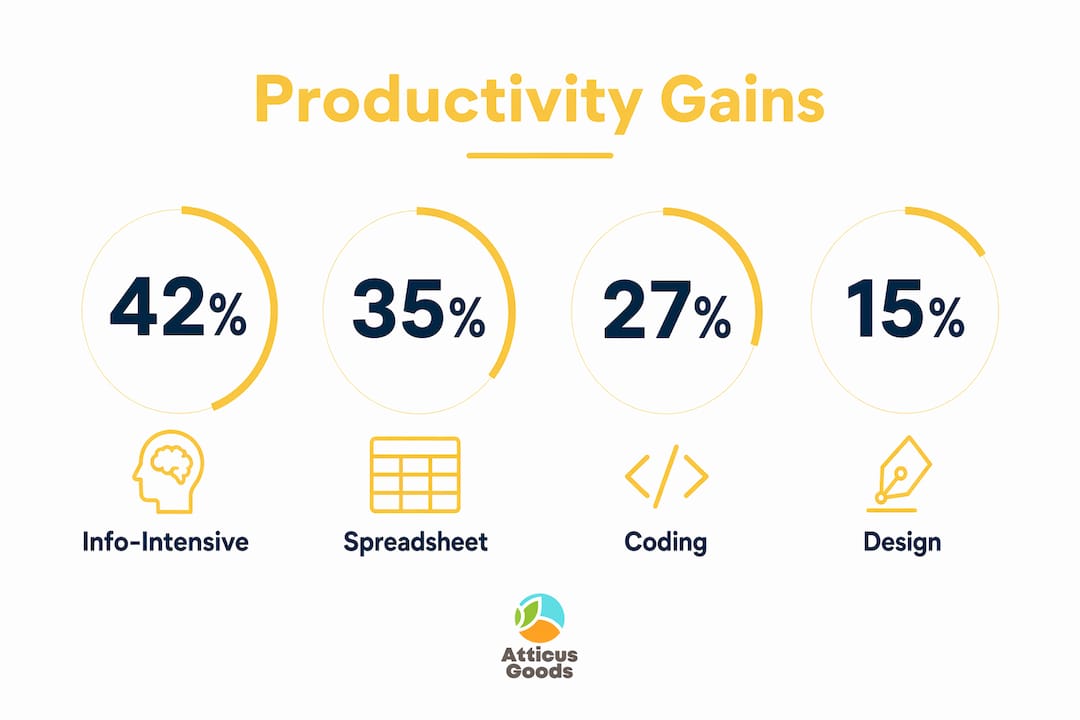
The gains are not uniform across every task type. A Wichita State and Dell study broke down productivity improvements by category, and the spread is telling.
| Task type | Productivity gain with dual monitors |
|---|---|
| Information-intensive tasks | 42% |
| Spreadsheet editing | +42% |
| Multi-source office tasks | — |
| Window-switching reduction | 15–18% |
| Error rate reduction (data transfer) | 33% lower |
The cognitive explanation matters here. MIT neuroscientist Earl Miller has noted that when people think they are multitasking, they are actually switching between tasks rapidly, and every switch carries a cognitive cost. Dual screens reduce those switches by keeping both the source and the working document visible at once. The University of Utah study found that 98% of participants preferred dual monitors over a single screen after using both.
The U.S. Small Business Administration points out that professionals who constantly switch between programs, such as designers moving between Photoshop and Illustrator or developers previewing code changes, see the sharpest gains. The benefit is not just extra pixels. It is the preservation of mental context, keeping what you need to see in front of you so your brain does not have to reconstruct it from memory every few minutes.

One important nuance: productivity gains plateau after two monitors. Adding a third or fourth screen tends to introduce complexity and physical strain that outweigh the benefits. Two is the sweet spot for most workers.
How dual monitors improve wellbeing, not just output
Productivity numbers get most of the attention, but the comfort and wellbeing improvements from a well-configured dual screen setup are just as real. Workplace design researchers, including those at Steelcase, have documented that reducing the repetitive physical motion of constant window-switching lowers both mental fatigue and physical strain over a full workday.
The key benefits for wellbeing include:
- Reduced neck strain: When reference material lives on a second screen beside you rather than requiring you to scroll up and down a single monitor, you move your head less overall.
- Lower mental fatigue: Fewer context switches mean your working memory is not constantly being flushed and reloaded.
- Better task tracking: Keeping a project dashboard or communication app permanently visible on one screen means you never lose track of where a task stands.
- Higher satisfaction: The University of Utah study found that the overwhelming majority of participants preferred the dual screen experience, which correlates with lower frustration during complex work.
- Calmer workflow: Workers who do not have to hunt for information report feeling less stressed during high-demand periods.
The context preservation benefit is the one workplace design experts emphasize most. Keeping static reference material on one screen and active work on the other means your brain is not constantly rebuilding the mental model of what you were looking at. That reduction in cognitive overhead compounds across a full day.
Proper setup is the condition that makes all of this possible. A second monitor positioned poorly can create more neck pain and eye strain than a single screen. The benefits described here assume the monitors are placed correctly, which is where ergonomics comes in.
How to set up dual monitors ergonomically
Poor monitor placement is the most common reason people experience neck pain and eye strain with a dual screen setup. Getting the physical configuration right is not optional if you want the productivity and comfort benefits to actually show up.
Stanford’s ergonomics guidelines and OSHA and ANSI recommendations converge on the same core principles. Follow these steps in order:
- Set monitor height. The top of each screen should sit at or just below eye level. Your eyes should naturally rest near the upper third of the display when you look straight ahead.
- Set viewing distance. Position each monitor approximately 20–30 inches from your eyes. Larger screens belong at the far end of that range.
- Angle the screens correctly. Tilt each monitor upward by 10–20 degrees. The center of the screen should sit roughly 30 degrees below your horizontal eye line for maximum comfort.
- Position screens relative to each other. If you use both screens equally, center the seam between them directly in front of your face and keep both at the same height. If one screen is primary, place it directly in front of you and angle the secondary screen slightly inward.
- Stay within safe head-movement range. Dell’s ergonomics guidelines recommend keeping head movement within 45 degrees left and right of center, with a hard limit of 60 degrees. If you are constantly turning your head past that range, your monitors are too far apart.
- Use adjustable mounting. A VESA mount or adjustable monitor arm gives you the flexibility to fine-tune height, tilt, and distance without being locked into a fixed stand position.
- Apply the 20-20-20 rule. Every 20 minutes, look at something 20 feet away for 20 seconds. This resets eye focus and cuts digital eye strain during long sessions.
“According to the Canadian Centre for Occupational Health and Safety, monitors should sit approximately an arm’s length from your eyes. Most ergonomic literature, including guidelines referenced by OSHA and ANSI, recommends a viewing distance of 50 to 75 cm (20 to 30 inches). Larger monitors should sit at the farther end of that range.” — Mobile Pixels ergonomics research
Pro Tip: If you work with mismatched monitor sizes, set the taller screen as your primary and position the secondary slightly lower so your eyes do not have to travel upward to read it. This small adjustment prevents the asymmetric neck strain that builds up over weeks.
A PC mount or bracket can also free up desk space by moving your tower off the surface entirely, giving you more room to position both monitors at the correct depth. Cable management matters too. Unmanaged cables create visual clutter that makes the setup feel chaotic and harder to maintain. A few cable clips and a tray solve the problem in minutes.
Practical tips for getting the most from your dual screen setup
Getting two monitors physically connected is the easy part. Getting them to actually improve your workflow takes a few deliberate choices about how you configure and use them.
Configure Windows 11 correctly first
- Press Win+P and select “Extend these displays.” This spreads your desktop across both screens, which is the mode that delivers the productivity benefits cited in research. Duplicate mode shows the same image on both screens and eliminates the benefit entirely.
- Open Settings > System > Display and drag the monitor icons to match their real-world positions on your desk. This prevents the cursor from jumping when you move it between screens.
- Set each monitor to its native resolution. If your two screens have different resolutions, use OS-level scaling to make text appear consistently sized rather than forcing both to the same resolution.
- Use Snap layouts. Hover over the maximize button on any window to see preset layout options. Side-by-side, three-column, and stacked arrangements are all available natively in Windows 11 without third-party tools.
- Learn the key shortcuts. Win+Left and Win+Right snap the active window to either side of the current monitor. Shift+Win+Left and Shift+Win+Right move a window to the next monitor entirely. Win+Home minimizes everything except your active window, which is useful when you need to eliminate distractions fast.
You can find a full walkthrough for laptop-specific configurations at how to set up dual monitors on a laptop.
Assign roles to each screen deliberately
The biggest productivity gain comes from being intentional about what lives where. Designate one screen for primary work, meaning the document, code editor, or design canvas you are actively producing. Put reference material, communication apps, dashboards, and data on the second screen. This eliminates the constant window-switching that, according to research, drops by 15–18% and can save up to 30 minutes per day.
Remote workers benefit from a specific version of this: keep your video call window on one screen and your working documents on the other. The U.S. Small Business Administration specifically calls this out as one of the clearest practical advantages of a dual screen setup for professionals who spend significant time in virtual meetings.
Handle mismatched monitors carefully
Mixed-resolution setups require OS display scaling adjustments to avoid cursor jumps and window resizing problems. Set each monitor to its native resolution, then use Windows scaling (Settings > System > Display > Scale) to make text appear the same size on both. If the color profiles differ noticeably, use each monitor’s built-in settings to adjust brightness and color temperature until the transition between screens feels natural.
Consider portrait orientation for one screen
Rotating one monitor to vertical orientation is especially useful for coders, writers, and anyone who works with long documents. Jon Peddie Research specifically notes that a portrait-mode monitor boosts productivity by removing the need to scroll. In Windows, go to Settings > System > Display, select the monitor you want to rotate, and change the orientation to “Portrait.” This requires a VESA-compatible mount or a stand with rotation capability.
Avoid the distraction sink
A second screen can quietly become a second source of interruptions. If you park email, chat notifications, and social feeds on the secondary monitor and leave them running all day, you are not reducing cognitive load. You are adding to it. During deep work sessions, limit the secondary screen to static reference material or close it to a single, non-alerting application. The distraction sink effect is one of the most common reasons people set up dual monitors and then report no productivity improvement.
Pro Tip: During your most demanding work blocks, put your communication apps on Do Not Disturb and use the secondary screen only for the reference material directly relevant to the task at hand. Treat the second screen as a tool, not a second inbox.
Upgrade your workspace at Atticus Goods
A well-configured dual monitor setup deserves equally capable peripherals. At Atticus Goods, you will find the keyboards, mounts, and accessories that complete a productive desk. The Logitech G915 X LIGHTSPEED wireless keyboard pairs cleanly with a dual screen setup, giving you a clutter-free surface and fully programmable keys for the shortcuts that matter most. Atticus Goods ships next-day across the United States, so your workspace upgrade arrives fast.
Browse office monitors and accessories to find the right combination for your desk.
Key Takeaways
Dual monitors deliver measurable, research-backed productivity gains, but only when configured with intentional screen roles and proper ergonomic placement.
| Point | Details |
|---|---|
| Proven productivity gains | Jon Peddie Research found a 42% average productivity increase with multiple monitors across 1,000+ users. |
| Accuracy improvement | University of Utah research recorded a 33% lower error rate on dual screens versus single monitors in data-transfer tasks. |
| Cognitive load reduction | Window-switching drops by 15–18% with dual monitors, saving up to 30 minutes per workday. |
| Ergonomic setup is required | Monitor tops should sit at eye level, 20–30 inches away, with head movement staying within 45 degrees of center. |
| Two screens is the optimum | Productivity gains plateau after two monitors; adding more screens tends to introduce complexity and physical strain. |