

Choosing the right external hard drive comes down to five things: how much storage you need, how fast you need to access it, how you’ll carry or store it, what ports your computer has, and how much you’re willing to spend. Get those five right and the rest is just shopping. The featured drives in this guide cover every major use case: the WD My Passport for everyday portability, the WD My Book for desktop archival work, the ADATA HD710M Pro and SanDisk Professional G-Drive ArmorATD for rugged outdoor use, the WD Black P10 Game Drive for gaming, the iStorage DiskAshur DT2 for encrypted security, and the LaCie Mobile Drive (2022) for buyers who care about aesthetics as much as function.
Before you spend a dollar, here’s what actually matters:
- Drive type: Portable drives run off USB power and fit in a pocket. Desktop drives need a wall outlet but offer more capacity and speed.
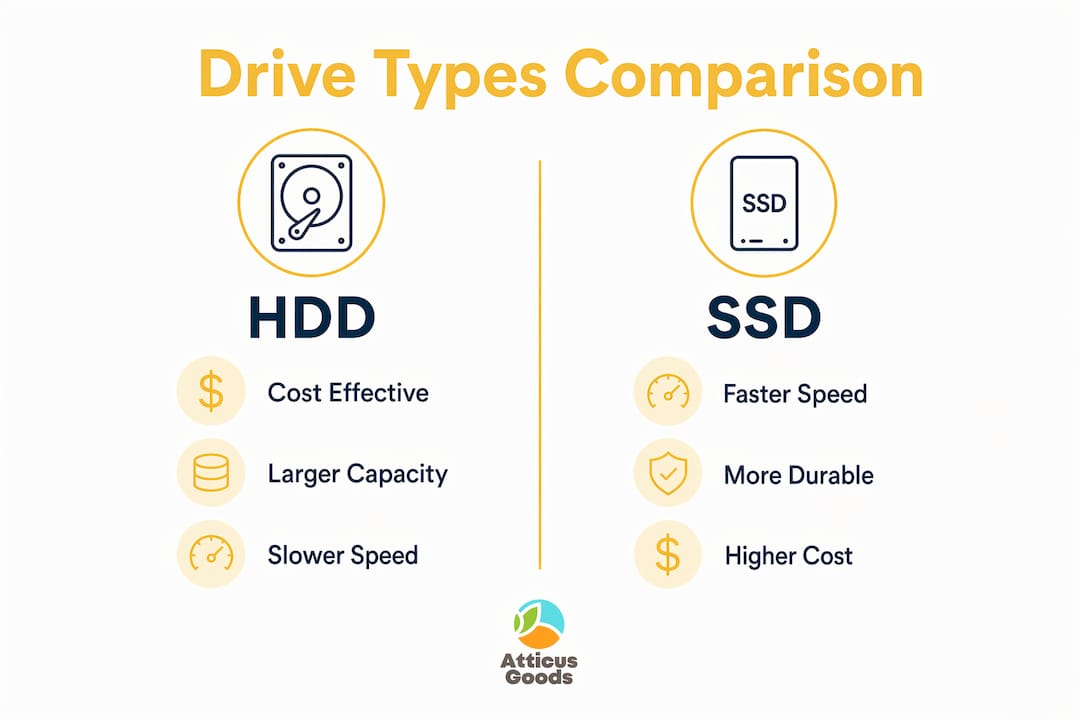
- HDD vs. SSD: Portable HDDs transfer at roughly 120–150 MB/s and cost $16–$32 per terabyte. External SSDs hit 700–1,000 MB/s but run $70–$120 per terabyte.
- Capacity: For a full system backup of a laptop with a 1–2 TB internal SSD, a 1 TB external drive is usually adequate because imaging software compresses data heavily. Personal photo and video libraries need more headroom.
- Connectivity: USB 3.2 Gen 2 delivers up to 10 Gbps. Thunderbolt 4 reaches 40 Gbps. Your computer’s ports set the ceiling.
- Durability: SSDs survive drops that destroy spinning HDDs. Rugged casings add protection for outdoor use.
- Security: Hardware encryption (as in the iStorage DiskAshur DT2) beats software encryption for sensitive data.
- Price: A 2 TB portable HDD runs $50–$65. A 2 TB portable SSD runs $140–$200.
Pro Tip: Buy the next size up from what you think you need. The price difference between a 2 TB and 4 TB portable drive is usually under $30, and you’ll avoid buying a second drive in two years.

What are the best external hard drives in 2026?
The seven drives below represent the strongest options across every major category. PCMag’s current picks for best portable and best desktop drives are the WD My Passport and WD My Book, respectively, and those recommendations hold up well against the full field.
| Drive | Type | Best For | Capacity | Speed | Durability | Connectivity |
|---|---|---|---|---|---|---|
| WD My Passport | Portable HDD | General backup, travel | Up to 4 TB | USB 3.2 Gen 1 | Standard | USB-A / USB-C |
| WD My Book | Desktop HDD | Large archival storage | Up to 22 TB | USB 3.2 Gen 1 | Standard | USB-A |
| ADATA HD710M Pro | Portable HDD | Outdoor, harsh environments | Up to 5 TB | USB 3.2 Gen 1 | Shockproof, water-resistant | USB-A |
| SanDisk Professional G-Drive ArmorATD | Portable HDD | Field professionals | Up to 5 TB | USB 3.2 Gen 1 | Military-grade | USB-C |
| WD Black P10 Game Drive | Portable HDD | Gaming storage expansion | Up to 5 TB | USB 3.2 Gen 1 | Standard | USB-A |
| iStorage DiskAshur DT2 | Desktop HDD | Encrypted, secure storage | Up to 20 TB | USB 3.2 Gen 1 | FIPS certified | USB-A |
| LaCie Mobile Drive (2022) | Portable HDD | Design-conscious users | Up to 5 TB | USB 3.2 Gen 1 | Standard | USB-C |
WD My Passport
The WD My Passport is the default recommendation for most buyers. It’s bus-powered, pocketable, and available in high capacities suitable for varied needs. Hardware encryption is built in, and Western Digital backs it with a three-year warranty. The drive doesn’t do anything flashy, which is exactly why it works: reliable hardware, broad OS compatibility, and a price point that makes buying a second one for off-site backup easy to justify.
Pros: Bus-powered, hardware encryption, wide capacity range, strong brand track record. Cons: HDD speed ceiling around 120–150 MB/s, not rugged.
WD My Book
The My Book is the right call when you need serious capacity and the drive stays on a desk. It runs on AC power, which means it’s not for travel, but that same power connection lets it spin faster and handle larger files more efficiently than any bus-powered portable. It’s the go-to for photo libraries, video archives, and scheduled computer backups.
Pros: High capacity up to 22 TB, faster than portable HDDs, AC powered for consistent performance. Cons: Requires wall outlet, not portable, should not be moved during operation.
ADATA HD710M Pro
Built for people who work outside or in rough conditions. The HD710M Pro carries a shockproof and water-resistant design that most standard portables can’t match. If you’re on a job site, hiking with camera gear, or working in dusty environments, this drive handles the abuse that would kill a bare portable.
Pros: Shockproof, water-resistant, rugged casing. Cons: Heavier than standard portables, HDD speed limits apply.
SanDisk Professional G-Drive ArmorATD
The ArmorATD steps up the ruggedness further with military-grade durability ratings. It’s aimed at field professionals who carry drives into genuinely hostile environments. The USB-C connection is a practical advantage for modern laptops, and the SanDisk Professional branding signals a focus on reliability.
Pros: Military-grade durability, USB-C native, trusted professional brand. Cons: Premium price for the rugged tier, HDD speed.
WD Black P10 Game Drive
Gamers expanding console or PC storage will find the P10 purpose-built for the job. The design is game-oriented, but the practical advantage is straightforward: it gives you fast enough transfer speeds for game installs and saves, in a portable form factor that works with Xbox and PC. PlayStation 5 users should note that the PS5 only supports external drives for PS4 games, not native PS5 titles.
Pros: Game-oriented design, portable, compatible with Xbox and PC. Cons: HDD speed may feel slow for loading-sensitive titles, limited PS5 compatibility.
iStorage DiskAshur DT2
The DiskAshur DT2 is the only drive on this list with FIPS-certified hardware encryption and a physical PIN pad. You unlock it before it connects to any computer, which means the data stays protected even if the drive is stolen. For anyone handling sensitive client data, medical records, or financial files, this level of security is worth the premium.
Pros: FIPS-certified hardware encryption, PIN-based access, available up to 20 TB. Cons: Higher price, desktop form factor requires AC power.
LaCie Mobile Drive (2026)
The LaCie Mobile Drive is the pick for buyers who want a drive that doesn’t look like every other black plastic rectangle. Co-designed with input from creative professionals, it has a premium aluminum build and USB-C connectivity. Performance is standard HDD territory, but the build quality and aesthetics set it apart on a desk or in a bag.
Pros: Premium aluminum design, USB-C, creative professional appeal. Cons: No rugged protection, HDD speed.
Pro Tip: Check the warranty and data recovery options before buying. Seagate offers a Rescue Data Recovery plan on several drives. Western Digital includes a three-year warranty on most My Passport models. These details matter more than you’d think when a drive fails at the worst possible moment.
What should you look for when choosing an external hard drive?
The spec sheet on any drive can look overwhelming. Here’s how to cut through it.
HDD vs. SSD: the real tradeoff
The difference between SSD and HDD comes down to speed, durability, and cost. HDDs use spinning platters and a moving read/write head. SSDs store data in flash cells with no moving parts. That physical difference explains everything else.
Portable SSDs typically survive drops from typical pocket or bag heights without damage. A spinning HDD powered on at similar heights is much more vulnerable to damage. For desk use, HDDs offer more storage per dollar.
Storage capacity: how much do you actually need?
- General backup: Buy at least twice your current storage. If your laptop has 500 GB, get a 1 TB drive.
- Media archiving: 4–8 TB gives room to grow for photo and video collections.
- Video editors: 2–4 TB SSD for active projects, plus a separate 8–16 TB HDD for archives.
- System image backup: A 1 TB external drive handles a full backup of a 1–2 TB internal SSD because imaging software compresses the data significantly.
Transfer speed and interface
Speed matters most when you move large files regularly. For backing up 100 GB, an external SSD on USB 3.2 Gen 2 takes roughly 2 minutes. An HDD on the same connection takes roughly 11 minutes. For occasional backups, that gap is tolerable. For daily video editing workflows, it’s not.
Understanding the USB-C vs. Thunderbolt distinction helps here. USB 3.2 Gen 1 tops out at 5 Gbps. USB 3.2 Gen 2 doubles that to 10 Gbps. Thunderbolt 4 reaches 40 Gbps, and Thunderbolt 5 pushes to 80 Gbps. For an HDD, the speed difference between USB 3.2 Gen 1 and Gen 2 is largely irrelevant because the drive’s mechanical speed is the bottleneck. For an NVMe SSD, the interface becomes the limiting factor.
- Check what ports your computer actually has before buying.
- Match the drive’s interface to your fastest available port.
- For HDDs, USB 3.2 Gen 1 is sufficient. For high-speed SSDs, aim for Gen 2 or Thunderbolt.
- Confirm cable compatibility. Some drives ship with USB-A cables but your laptop may only have USB-C ports.
Durability and portability
Portable drives are designed for frequent transport and are physically more durable for travel. Desktop drives prioritize raw capacity and speed for stationary use. That’s the fundamental split. Within portable drives, rugged models like the ADATA HD710M Pro and SanDisk Professional G-Drive ArmorATD add drop resistance and water resistance for outdoor conditions.
Security features
Software encryption protects most users adequately. For sensitive data, hardware encryption is stronger because it operates independently of the host computer’s software. The iStorage DiskAshur DT2 takes this furthest with FIPS-certified hardware encryption and a physical PIN pad. Compatibility issues also arise from OS formatting: a drive pre-formatted for Windows may not work plug-and-play on macOS, and vice versa. Check the default format before buying, or plan to reformat on first use.
Price and value
- Portable HDDs generally are the most affordable option per terabyte.
- Desktop HDDs offer better cost per terabyte for large capacity storage.
- Portable SSDs cost more but provide superior speed and durability.
The cost-per-terabyte gap between HDD and SSD is wide. For bulk storage, HDDs win on price. For speed and durability in a portable form factor, SSDs justify the premium.
How do you set up and maintain an external hard drive?
Getting a drive working is straightforward. Keeping it working for years takes a few deliberate habits.
Setting up a new drive
- Connect the drive using the included cable. Most portable drives are bus-powered and appear on your desktop or in File Explorer within seconds.
- Check the format. Drives pre-formatted for Windows use NTFS, which macOS can read but not write to natively. Drives formatted as exFAT work across Windows, macOS, and Linux without reformatting.
- Reformat if needed. On Windows, use Disk Management. On macOS, use Disk Utility. Choose exFAT for cross-platform use or APFS for Mac-only setups.
- Name the drive something specific. “Backup Drive 2026” beats “Untitled” when you’re looking at three drives in a folder.
- Run your first backup immediately. Don’t wait until the drive is “set up perfectly.”
Safe disconnection and storage
Always eject the drive through your operating system before unplugging. Pulling the cable while a file is writing can corrupt data. On Windows, use the “Safely Remove Hardware” icon in the taskbar. On macOS, drag the drive icon to the trash or right-click and eject.
Store drives in a cool, dry location away from magnets and direct sunlight. For HDDs specifically, avoid stacking heavy objects on top of them.
Pro Tip: Never move a spinning HDD while it’s reading or writing. Physical shock during operation can cause an immediate, irrecoverable head crash that destroys the data on the drive. If you need to carry a drive regularly, use an SSD.
Monitoring drive health
S.M.A.R.T. diagnostic tools give the most reliable early warning of drive failure. On Windows, CrystalDiskInfo reads S.M.A.R.T. data and flags drives showing signs of wear. On macOS, DriveDx does the same job. Warning signs to watch for include the drive slowing noticeably during transfers, intermittent disconnects, repeated disk errors, and unusual clicking or grinding sounds from an HDD.
Backup best practices
The industry-standard 3-2-1 rule keeps data safe: three copies of important data, on two different storage types, with one copy stored off-site. A practical setup looks like this: primary data on your laptop, a local backup on an external HDD, and a cloud backup through a service like Backblaze Personal or iCloud Drive. One external drive is not a backup. It’s a single point of failure.
Expert advice on picking the right drive for your situation
The best drive is not always the fastest or largest but the one that suits your working style and data profile. That principle sounds obvious until you watch someone spend $200 on a high-speed SSD to back up a document folder they access twice a year.
Here’s how the calculus actually works across common scenarios:
- Video editors and photographers: An external SSD handles active project files where speed matters. A high-capacity HDD stores the archive. Running both is cheaper than buying a single massive SSD.
- Students and casual users: A 1–2 TB portable HDD covers most needs at the lowest cost. The WD My Passport is the standard recommendation here.
- Field professionals: Rugged drives like the SanDisk Professional G-Drive ArmorATD justify their price when the alternative is a failed drive on a remote shoot.
- Security-conscious users: The iStorage DiskAshur DT2’s FIPS-certified hardware encryption is the right tool. Software encryption on a standard drive is adequate for most people but not for regulated industries.
- Gamers: The WD Black P10 Game Drive works well for Xbox and PC game storage expansion. For PlayStation 5 users, note that external drives only support backward-compatible titles, with internal SSD upgrades required for native games.
“Creative professionals should consider a combination of SSD for active work and HDD for archives to balance performance with cost. The best drive is not always the fastest or largest but the one that suits your working style and data profile.” — Technology storage experts, via Platinum Data Recovery
A tiered storage strategy, pairing SSD and HDD, is the approach that storage professionals consistently recommend for anyone managing more than a few terabytes. You get the speed where you need it and the cost efficiency where you don’t.
One detail buyers often overlook: backup drive capacity relative to the internal drive. For system image backups, imaging software like Acronis compresses data substantially, so a 1 TB external drive can back up a 1–2 TB internal SSD without running out of space. For raw file libraries, photos, and uncompressed video, that compression doesn’t apply. Size those drives based on the actual data volume, not the internal drive’s total capacity.
Atticus Goods carries the drives you’re ready to buy
Once you’ve worked out which drive type fits your needs, the next step is finding it in stock at a fair price with fast delivery. Atticus Goods stocks a broad catalog of external hard drives and storage accessories, including the models covered in this guide, with next-day shipping across the United States. No waiting a week for a drive you need now.
If you’re pairing a new external drive with a USB-C hub or adapter to handle port compatibility, Atticus Goods carries those too. The site covers over 90,000 in-stock products across consumer electronics, so you can sort out the drive, the cable, and the accessories in one order. Browse the full storage catalog and filter by capacity, brand, or drive type to find exactly what you need.
Key Takeaways
Matching your drive to your actual use case, not the highest specs available, is the single decision that separates a good purchase from an expensive mistake.
| Point | Details |
|---|---|
| HDD vs. SSD cost gap | HDDs run $16–$32 per TB; SSDs run $70–$120 per TB, with speed advantages that matter for active workflows. |
| Capacity sizing | Buy at least twice your current storage for general backup; video editors need 2–4 TB SSD for active work plus a separate HDD archive. |
| Interface matters for SSDs | USB 3.2 Gen 2 hits 10 Gbps; Thunderbolt 4 reaches 40 Gbps. For HDDs, USB 3.2 Gen 1 is sufficient. |
| 3-2-1 backup rule | Keep three copies of important data, on two storage types, with one copy off-site. One external drive alone is not a backup. |
| Atticus Goods | Stocks the drives covered in this guide with next-day U.S. shipping and a broad accessories catalog for complete storage setups. |