

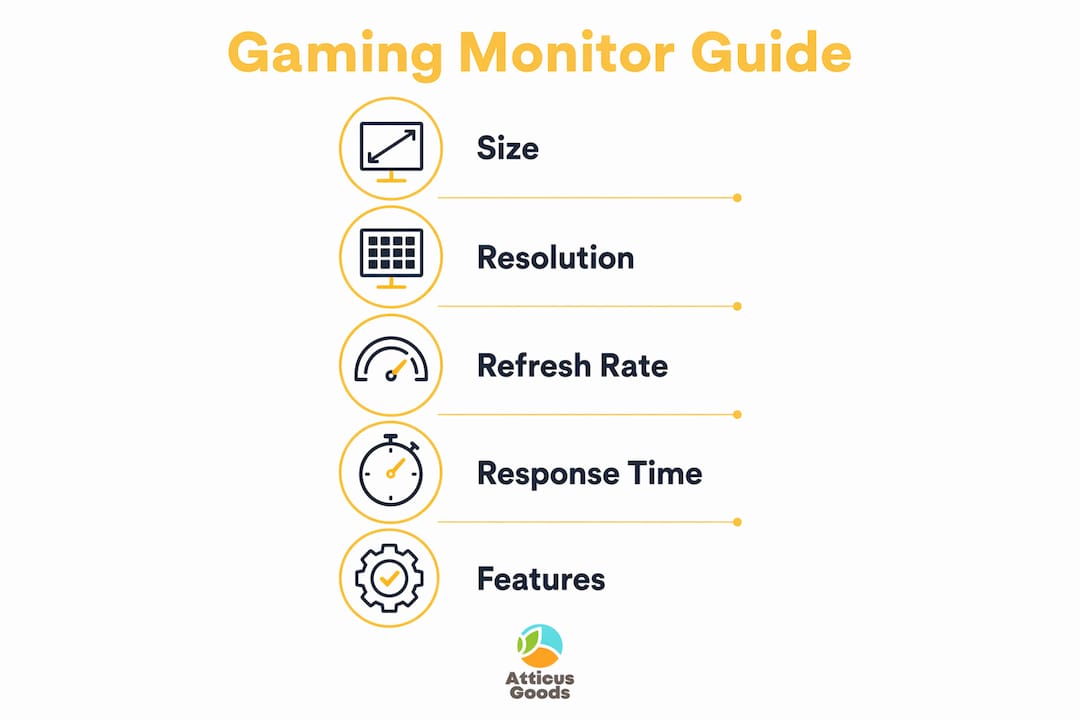
The right gaming monitor comes down to five things: resolution matched to your GPU, a refresh rate your system can actually sustain, a panel type that fits your game library, ports that support your hardware, and a size that suits your desk. Get those five right and almost every other spec falls into place. Get even one wrong and you’ll feel it every session.
Here’s what separates a smart purchase from an expensive mistake in 2026:
- Resolution: 1440p at 27" is the sweet spot for most builds; 4K demands serious GPU horsepower
- Refresh rate: 144Hz is the floor, 165–180Hz is the mainstream target, 240Hz+ is for competitive play
- Panel type: IPS for all-around quality, OLED for image impact, VA for budget contrast, TN for extreme esports speed
- Adaptive sync: FreeSync and G-Sync now overlap considerably, giving you more flexibility than ever
- Connectivity: HDMI 2.1 and DisplayPort 1.4 cover most setups; DisplayPort 2.1 matters only at 4K 240Hz+
- Ergonomics: Height, tilt, and swivel adjustability matter more than most buyers realize until hour three of a session
- Eye comfort: Flicker-free backlights and blue light filters reduce fatigue during long play
Industry reviewers at Tom’s Hardware and PC Gamer consistently validate these priorities across hundreds of panel tests. The sections below break each one down so you can apply them to your specific setup and budget.
Table of Contents
- 1. How screen size and aspect ratio shape your gaming experience
- 2. Resolution and panel types: what actually affects image quality
- 3. Refresh rate and response time: the specs that affect every frame
- 4. Color quality and premium features worth paying for
- 5. Matching your monitor to your actual gaming setup
- Atticus Goods has the gaming gear to complete your setup
- Key Takeaways
1. How screen size and aspect ratio shape your gaming experience
Size is the first decision, and it locks in everything else. Most competitive gamers land on 24"–27" because a smaller screen keeps the action within your natural field of view without requiring head movement. Immersive single-player gaming opens the door to 32" and beyond, where the extra real estate genuinely adds to atmosphere.
Standard vs. ultrawide vs. super-ultrawide:
- 16:9 (standard): The universal format. Every game supports it, and 27" at 1440p is the most popular configuration for good reason.
- 21:9 ultrawide: A 34" panel at 3440x1440 gives you more peripheral vision in open-world games and eliminates the bezel of a dual-monitor setup for productivity. Some competitive shooters don’t support the format natively, which is worth checking before you buy.
- 32:9 super-ultrawide: A 49" panel at 5120x1440 is essentially two 27" monitors fused together. It’s a niche format that suits simulation and racing games well, but it’s expensive and demands a large desk.
Curved vs. flat is mostly personal preference, though curvature does help at ultrawide sizes by keeping the screen edges closer to your natural focal distance. A 1000R curve on a 49" panel reduces the sense that you’re staring at a wall. On a standard 27" flat screen, the difference is barely perceptible.
Ergonomics deserve more attention than they get. A stand with full height, tilt, and swivel adjustment lets you position the screen at eye level, which reduces neck strain over long sessions. Monitors without height adjustment force you to stack books under them, which is a $400 problem with a $0 solution that shouldn’t exist. If the stand is fixed, confirm the monitor has a 100x100mm VESA mount so you can attach an arm later.
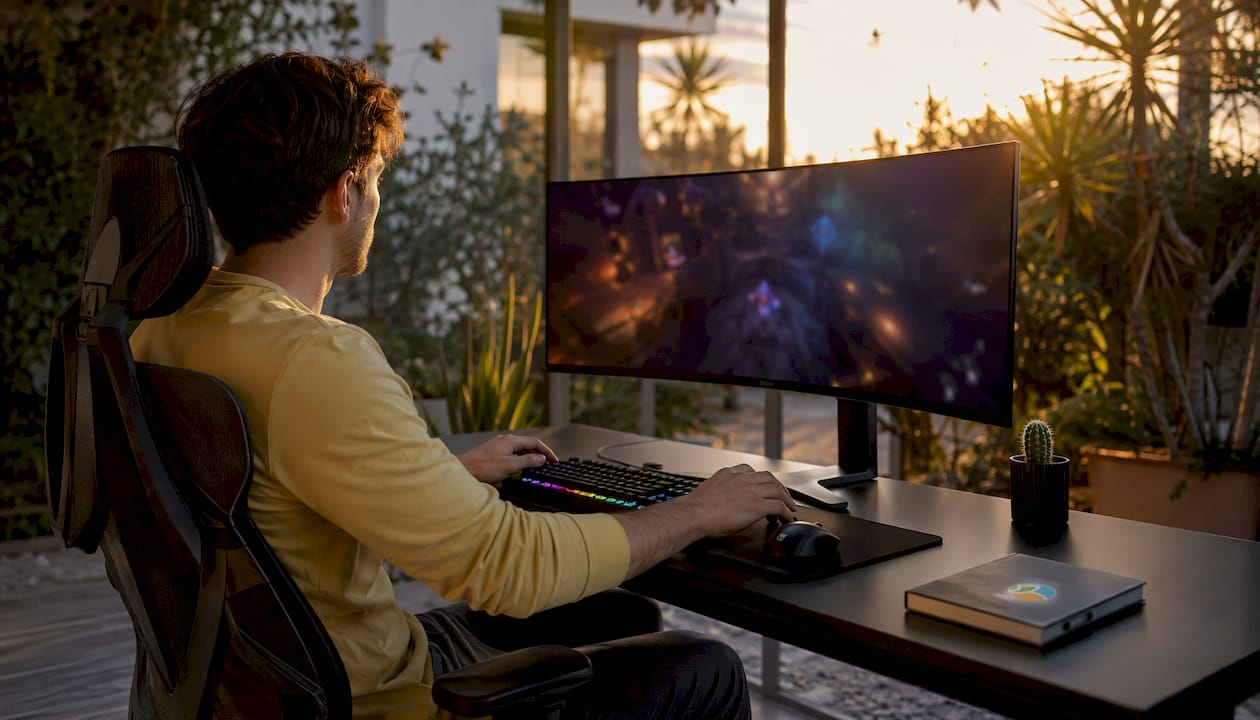
Blue light filter modes and flicker-free backlights are standard on most modern panels. They’re worth enabling, especially if you game in the evening. The difference in eye fatigue after a four-hour session is real.
2. Resolution and panel types: what actually affects image quality
Resolution determines how sharp everything looks. Panel technology determines how colors, contrast, and motion are rendered. Both matter, and they interact with your GPU in ways that affect the whole experience.
Resolution tiers:
- 1080p (1920x1080): Still the standard for competitive esports where hitting 240Hz+ matters more than image detail. On a 24" screen it looks fine; on anything larger, pixel structure becomes visible at normal desk distances.
- 1440p (2560x1440): The recommendation for most PC gamers right now. At 27", 1440p delivers 109 pixels per inch, which looks sharp for both gaming and desktop use without punishing mid-range GPUs.
- 4K (3840x2160): Stunning on a 32" panel, but native 4K gaming requires RTX 5070-class hardware or better for smooth frame rates at high settings. DLSS 4 and FSR 4 upscaling make 4K more accessible, but the GPU cost is real.
Panel technology comparison:
- IPS: Best all-around choice. Wide viewing angles, accurate color, and fast response times. Modern Fast IPS panels hit 1ms response times at 144Hz and above, making ghosting a non-issue in most games.
- VA: Higher native contrast than IPS, which helps in dark scenes. Response times are slower, which can produce smearing in fast motion. Good value option when contrast matters more than speed.
- TN: Fastest pixel response times available, used in extreme esports monitors at 360Hz and above. The trade-off is poor color accuracy and narrow viewing angles. Hard to recommend for anything beyond pure competitive play.
- OLED: The most visually impressive panel type. Infinite contrast, perfect blacks, and near-instantaneous pixel response. The concern historically was burn-in from static UI elements. Dedicated care features like pixel refresh and heat management have significantly reduced that risk, making OLED a practical choice for most gamers today, not just enthusiasts willing to accept trade-offs.
HDR support varies wildly. DisplayHDR 400 certification is essentially a marketing badge with little real-world impact. DisplayHDR 1000 with full-array local dimming or OLED’s per-pixel brightness control is where HDR actually looks better than SDR. Mini LED backlights with many dimming zones bridge the gap between standard IPS and OLED for HDR performance. If HDR matters to you, verify the certification tier before buying.
For color accuracy, look for DCI-P3 coverage above 90% and factory calibration data. The Acer Predator XB273U F5, reviewed by Tom’s Hardware, covers around 86% of DCI-P3 with no calibration needed out of the box. If you do color-sensitive work alongside gaming, an sRGB mode that retains calibration adjustments is a feature worth seeking out. You can also find detailed guidance on calibrating a 4K monitor to get the most accurate image from your panel.
3. Refresh rate and response time: the specs that affect every frame
Refresh rate and response time are where marketing gets the most creative, and where buyers most often make expensive mistakes.
Refresh rate tiers:
- 144Hz: The baseline for smooth gaming in 2026. The jump from 60Hz to 144Hz is dramatic and immediately obvious. Any new gaming monitor purchase should clear this threshold.
- 165–180Hz: The mainstream sweet spot. Most mid-range gaming PCs can sustain these frame rates in popular titles, making this the right target for the majority of builds.
- 240Hz+: Meaningful for competitive titles like CS2, Valorant, and Apex Legends, where reduced frame time creates real gameplay advantages. To use 240Hz effectively, your GPU needs to consistently produce 240+ frames per second, which requires serious hardware investment.
- 360Hz+: Primarily for professional esports players. The perceptible difference from 240Hz is small for most people.
Response time is where the nuance lives. A 360Hz monitor with slow pixel transitions can look blurrier than a 240Hz OLED with near-instantaneous 0.03ms gray-to-gray response times. The Hz number on the box tells you how often the image refreshes. The GtG (gray-to-gray) response time tells you how fast individual pixels can change. Both matter, and a high refresh rate with slow pixels is a bad combination.
MPRT (Moving Picture Response Time) is a more practical metric for motion clarity than GtG, but manufacturers often measure it under ideal conditions. Independent benchmark sites like RTINGS give you real-world motion clarity scores that reflect actual gaming conditions.

G-Sync Pulsar is the most significant recent advance in LCD motion clarity. First shown at CES 2026, it combines adaptive sync with a rolling backlight scan synchronized with the TFT layer, delivering blur reduction with no brightness reduction. Tom’s Hardware’s review of the Acer Predator XB273U F5 found G-Sync Pulsar produced motion clarity visually indistinguishable from a premium OLED, which is a genuine breakthrough for IPS panels. It requires a GeForce RTX 40 or 50-series GPU connected via DisplayPort 1.4 or better.
Older blur reduction technologies like ELMB and ULMB flash the entire backlight as a unit. G-Sync Pulsar’s rolling scan is more sophisticated and avoids the brightness penalty those older methods impose.
Connectivity for high refresh rates:
- HDMI 2.1 supports 4K at 144Hz and 1440p at 240Hz
- DisplayPort 1.4 handles 1440p at 360Hz with DSC compression
- DisplayPort 2.1 is required for uncompressed 4K at 240Hz+
Input lag, separate from response time, measures the delay between a mouse or keyboard input and the corresponding change on screen. At high refresh rates, input lag drops naturally. Most 144Hz+ monitors measure under 10ms of input lag, which is imperceptible in practice. The Acer XB273U F5 measured extremely low input lag in Tom’s Hardware testing, described as giving the monitor “cat-like reflexes.”
4. Color quality and premium features worth paying for
Color accuracy, HDR implementation, adaptive sync, and connectivity options separate a good monitor from a great one at similar price points.
Color gamut and calibration:
- sRGB coverage above 95% is the baseline for accurate color in standard content
- DCI-P3 coverage above 90% is what you want for HDR gaming and any creative work
- Factory calibration means the monitor ships with accurate color out of the box, saving you the cost of a colorimeter
Adaptive sync has become far less complicated than it used to be. FreeSync and G-Sync compatibility now overlap considerably, meaning many FreeSync monitors work well with both AMD and Nvidia GPUs. If you have an Nvidia card, look for “G-Sync Compatible” certification. AMD users should target “FreeSync Premium” or “FreeSync Premium Pro.” G-Sync Pulsar, as covered above, is the premium tier that adds active blur reduction on top of adaptive sync.
Ports and connectivity matter more than most buyers check:
- Two HDMI 2.1 ports plus a DisplayPort 1.4 is the standard configuration for a modern gaming monitor
- USB-C with DisplayPort and Power Delivery is useful if you connect a laptop
- USB hub functionality (typically 2–3 USB-A downstream ports) keeps your desk cleaner
- A 3.5mm headphone jack is convenient but absent on some ultrawide models
Build quality and ergonomics affect daily comfort more than any spec. A stand with full height adjustment, tilt, and swivel is worth prioritizing. VESA mount compatibility (100x100mm is standard) gives you the option to switch to a monitor arm later. For extended gaming sessions, the ability to position the screen at exact eye level reduces neck and shoulder strain considerably. You can find more on ergonomic monitor positioning in Atticus Goods’ guide to best monitors for office use.
Eye comfort features to look for: flicker-free backlights (DC dimming rather than PWM), blue light filter modes, and ambient light sensors that adjust brightness automatically. These are standard on most mid-range and premium panels in 2026.
Additional features that add real value: a joystick-controlled OSD (much faster than button navigation), customizable crosshair overlays, dark stabilizer modes for visibility in shadowed scenes, and onboard color profiles for switching between gaming and content creation modes quickly.
5. Matching your monitor to your actual gaming setup
The most common and expensive mistake in monitor buying is purchasing for the setup you want rather than the setup you have. Experts consistently advise buying for your actual 80% usage scenario to avoid spending money on specs you’ll never use.
A 4K 240Hz monitor paired with an RTX 5060 Ti is a constant compromise. You’ll either run DLSS at Performance mode with reduced image quality, or drop settings to hit frame rates the monitor can use. A 1440p 165Hz monitor with the same GPU runs most games at ultra settings natively, looks better, and costs less. The panel you buy should match what your GPU can actually drive.
The total cost of a monitor upgrade extends beyond the sticker price. Factor in:
- GPU capability: Does your card support the resolution and refresh rate at playable frame rates?
- Cables: 4K 240Hz may require a DisplayPort 2.1 cable your current setup doesn’t include
- Desk space: A 34" ultrawide needs meaningfully more depth than a 27" panel
- Mounting: If the stock stand won’t work, a monitor arm adds $30–$80
For competitive shooters, prioritize refresh rate and response time over resolution. A 1080p 240Hz IPS panel will serve you better than a 4K 60Hz panel in CS2. For story-driven single-player games, image quality and contrast matter more, making OLED or a high-quality IPS with Mini LED backlighting the better investment.
Pro Tip: Track monitor prices for two to four weeks before buying. Prices fluctuate after launch, and independent benchmarks from sources like Tom’s Hardware often surface within 30 days of release, revealing real-world performance that marketing specs don’t show. Late spring and early autumn tend to bring the sharpest discounts outside of holiday sales.
Warranty and return policy are part of the purchase decision, not an afterthought. For any monitor above $150, a two-year warranty and a 30-day return window are the minimum acceptable terms. OLED panels specifically benefit from burn-in warranty coverage. LG and Asus both offer three-year burn-in coverage on most of their OLED models. Check the fine print before committing.
If you’re building out a full gaming station, electronics liquidation sources like wholesale electronics pallets can surface discounted peripherals and accessories worth considering alongside your monitor purchase.
Atticus Goods has the gaming gear to complete your setup
A great monitor is only part of the equation. The keyboard you use alongside it affects your reaction time, comfort, and competitive edge just as much as the panel’s refresh rate. Atticus Goods carries a full range of gaming peripherals with next-day shipping across the United States, so you’re not waiting a week to complete your setup.
The Logitech G915 X LIGHTSPEED is a low-profile wireless keyboard that pairs well with any high-refresh-rate gaming setup, offering double-shot PBT keycaps, fully programmable keys, and RGB backlighting in a slim aluminum build. For players who want a more compact option, the Logitech G PRO X 60 LIGHTSPEED delivers wireless performance in an ultra-compact 60% form factor. Browse the full selection at Atticus Goods and ship the same day you order.
Key Takeaways
Matching your monitor to your GPU and actual gaming habits delivers more value than chasing the highest spec sheet numbers available.
| Point | Details |
|---|---|
| 1440p at 27" is the sweet spot | At 109 pixels per inch, it balances sharpness and GPU demand for most mid-range builds. |
| Refresh rate needs GPU support | 240Hz+ is only worthwhile if your GPU consistently produces 240+ frames per second. |
| Response time beats raw Hz for clarity | A 240Hz OLED at 0.03ms GtG can look sharper in motion than a 360Hz IPS with slow pixels. |
| G-Sync Pulsar closes the LCD-OLED gap | This rolling backlight scan technology delivers OLED-level motion clarity on IPS panels with no brightness loss. |
| Atticus Goods ships gaming gear next day | Keyboards, peripherals, and accessories from trusted brands, in stock and delivered fast across the US. |