

A home networking equipment checklist is the structured list of hardware, cables, and configuration steps required to build a fast, secure, and reliable internet connection throughout your home. Without one, most homeowners overspend on gear they don’t need, skip devices they do, and end up with dead zones and security gaps. This guide covers every layer of a modern home network, from the modem at your front door to the WPA3 security settings protecting your data, with specific product examples, placement strategies, and configuration tips built for 2026 standards including Wi-Fi 6E, Wi-Fi 7, and Netgear hardware.
1. The home networking equipment checklist: core devices first
Every home network starts with two devices: a modem and a router. The modem connects your home to your ISP, converting the signal from your cable, fiber, or DSL line into a usable internet connection. The router then takes that connection and distributes it to every device in your home, both wired and wireless. If your ISP provides a combined gateway device, you get both functions in one box, which simplifies setup but limits your control over advanced settings.
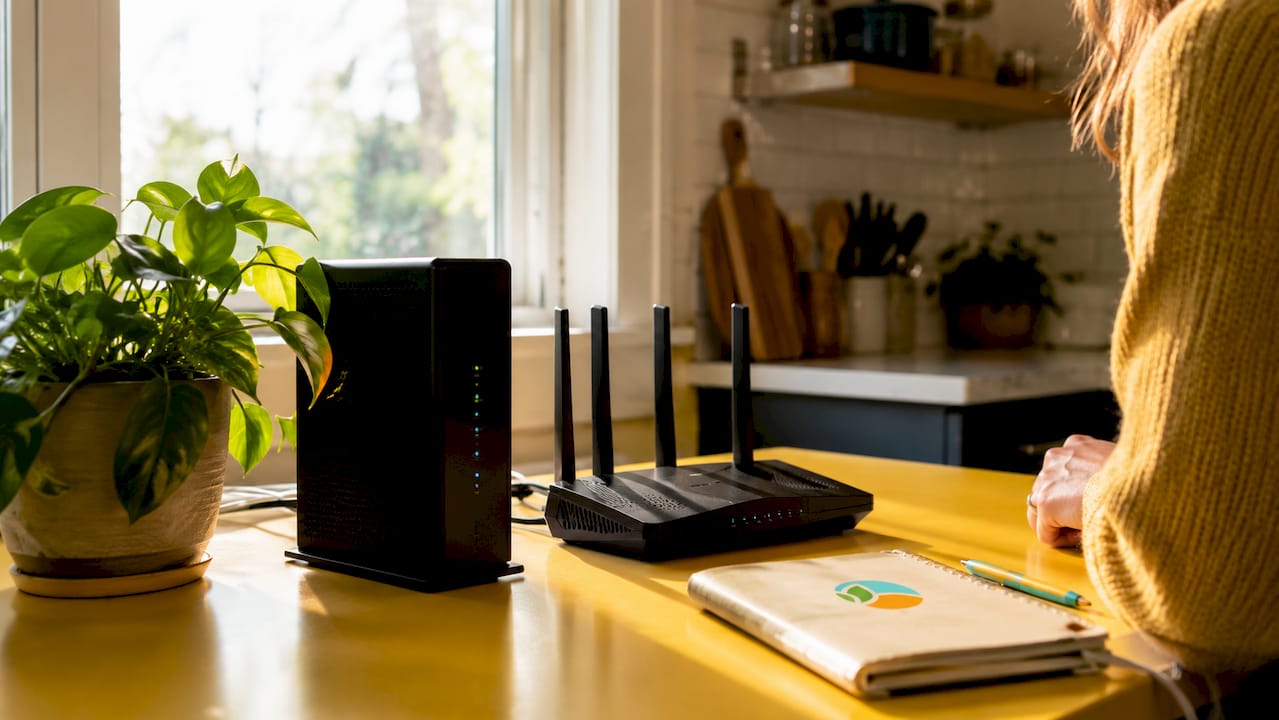
Choosing the right router matters more than most homeowners realize. Dual-band routers broadcast on 2.4GHz and 5GHz simultaneously, while tri-band models add a third radio, typically a second 5GHz or a 6GHz band under Wi-Fi 6E. Wi-Fi 7 routers, now widely available in 2026, add the 6GHz band with multi-link operation, which means your devices can use multiple bands at once for lower latency and higher throughput. For most homes with 20 or more connected devices, a Wi-Fi 6E or Wi-Fi 7 router is the right starting point.
Ethernet cables are the third non-negotiable item. CAT6 handles speeds up to 1Gbps at 100 meters, while CAT6A extends that to 10Gbps, making it the better choice for any run connecting your router to a switch or access point. Cheap cables introduce packet loss and inconsistent speeds that no router upgrade can fix.
- Modem: Verify DOCSIS 3.1 compatibility with your ISP before purchasing
- Router: Choose Wi-Fi 6E or Wi-Fi 7 for homes with many devices or 4K streaming
- Ethernet cables: Use CAT6A for backbone runs between networking gear
- Combined gateway: Convenient but limits advanced configuration options
Pro Tip: Before buying any modem, check your ISP’s approved device list. A Netgear DOCSIS 3.1 modem that isn’t on that list will either fail to connect or get throttled, regardless of its specs.
2. Extending coverage in larger or obstructed homes
Dead zones are not a router problem. They are a physics problem, and the solution depends on your home’s layout. For homes over roughly 2,000 square feet, or any home with thick concrete walls, mesh systems or wired access points outperform a single router placed in one corner. A mesh system uses multiple nodes that communicate with each other to create one unified network name, so your devices roam between nodes without dropping connection.
The critical distinction in this category is backhaul type. Wireless mesh relays cut available bandwidth in half because each node uses part of its radio capacity to talk to the next node. Ethernet-backed mesh nodes maintain full Wi-Fi performance because the wired connection handles all inter-node traffic, freeing the radios entirely for client devices. If you can run a single Ethernet cable to each node location, you should.
| Option | Best for | Backhaul | Performance |
|---|---|---|---|
| Mesh Wi-Fi system | Large homes, renters, easy setup | Wireless or wired | Good to excellent |
| Wired access points | Permanent installs, max performance | Ethernet (required) | Excellent |
| Range extenders | Small gaps, temporary fix | Wireless only | Fair |
Range extenders are the weakest option in every category. They create a separate network name, require manual device switching, and cut throughput significantly. They work as a short-term patch but not as a permanent solution for a home Wi-Fi equipment list built to last.
Pro Tip: Before buying extra nodes, use a free app like Wi-Fi Analyzer on Android to map your signal strength room by room. You may find that repositioning your existing router solves 80% of your dead zone problem.
3. Expanding wired connections with switches
Most routers ship with four LAN ports. That covers a desktop, a smart TV, a gaming console, and one more device before you run out. A network switch solves this by adding wired ports beyond what your router provides, acting as a wired hub that connects back to the router through a single uplink cable.
Unmanaged switches are plug-and-play and cost less. They work well for simple home setups where you just need more ports. Managed switches add features like VLANs, QoS, and port monitoring, which matter when you want to segment your smart home devices from your computers or prioritize video call traffic. For a home network that includes security cameras, smart speakers, and work-from-home equipment, a managed switch is worth the extra cost.
Power over Ethernet (PoE) switches deserve a specific mention. A PoE switch like the Netgear GS724TPP powers access points and IP cameras through the same Ethernet cable that carries data, eliminating the need for separate power adapters at each device location. This is the cleanest way to deploy multiple access points across a home.
| Switch type | VLAN support | PoE | Best use case |
|---|---|---|---|
| Unmanaged | No | Some models | Simple port expansion |
| Managed | Yes | Most models | Smart home segmentation, APs |
Wired Ethernet connections reduce wireless interference and latency, making them the right choice for gaming consoles, desktop PCs, and streaming devices. Every device you move off Wi-Fi improves the wireless experience for everything that stays on it.
- 8-port unmanaged switch: Ideal for a home office or entertainment center
- 24-port managed switch: Suited for whole-home wired deployments with VLANs
- PoE switch: Powers access points and cameras without separate adapters
- CAT6A patch cables: Use for all switch-to-device connections
4. Home network security checklist
Network security is not optional configuration. WPA3 provides stronger protection than WPA2 against brute-force attacks, and every router purchased in 2026 supports it. The practical challenge is that some older devices, including certain smart home gadgets and older laptops, cannot connect to WPA3-only networks. Running your router in WPA3/WPA2 mixed mode solves this while still protecting WPA3-capable devices with the stronger standard.
WPS is a convenience feature that lets devices join a network by pressing a button or entering an 8-digit PIN. That PIN can be cracked in hours using publicly available tools. Disable WPS entirely on every router and access point in your home. The minor inconvenience of entering a password manually is not a trade-off worth debating.
Firmware updates are the most neglected item on any home network security checklist. Router manufacturers release patches for discovered vulnerabilities, and an unpatched router running 18-month-old firmware is an open door regardless of how strong your password is. Most modern routers from Netgear, Asus, and TP-Link support automatic firmware updates. Enable that setting on day one.
- Enable WPA3 or WPA3/WPA2 mixed mode on all SSIDs
- Disable WPS on every router and access point
- Change the default admin username and password immediately
- Rename your SSID to something that does not identify your router model or ISP
- Create a separate guest Wi-Fi network for IoT devices and visitors
- Enable automatic firmware updates or set a monthly calendar reminder to check manually
- Back up your router configuration before making any VLAN or SSID changes
Pro Tip: Migrating to WPA3-only in one step often locks out smart home devices that never received a WPA3 firmware update. Switch to mixed mode first, identify which devices fail to connect, then decide whether to replace or isolate them before going WPA3-only.
5. Setup order, power protection, and ongoing maintenance
Physical setup order matters more than most guides admit. Power on your modem first, wait 60 to 90 seconds for it to register with your ISP, then power on your router. Skipping this sequence causes the router to request an IP address before the modem is ready, which results in a “no internet” error that confuses new users into thinking their hardware is defective.
Power protection belongs on every home networking equipment checklist. A surge protector guards against voltage spikes from lightning or grid fluctuations. A UPS (uninterruptible power supply) goes further by maintaining operation during brief outages, which is critical if you use VoIP phone service or work from home. A 600VA UPS provides enough runtime to save open files and gracefully shut down connected devices.
Router placement follows a simple rule: central and elevated beats corner and floor. A router placed inside a closet or next to a metal appliance loses 30 to 50 percent of its effective range before a single device connects. Mount it on a shelf in a central hallway or living area, with no large metal objects within two feet.
- Correct power-on sequence: Modem first, then router, then switches
- Surge protector: Required for all networking gear
- UPS (600VA or higher): Recommended for modem and router
- Router placement: Central, elevated, away from metal and microwaves
- Firmware schedule: Monthly check or automatic updates enabled
- Configuration backup: Export router settings after any major change
Key takeaways
A reliable home network requires the right hardware in the right order, secured with WPA3, and maintained with regular firmware updates.
| Point | Details |
|---|---|
| Start with modem and router | Verify ISP compatibility before purchasing; use Wi-Fi 6E or Wi-Fi 7 for modern homes. |
| Extend with wired backhaul | Mesh nodes or access points connected via Ethernet deliver full performance; wireless extenders do not. |
| Add a switch for wired ports | Managed PoE switches expand capacity and power access points and cameras from one device. |
| Secure with WPA3 and firmware | Disable WPS, change default credentials, and enable automatic firmware updates on day one. |
| Protect power and placement | Use a UPS of 600VA or higher and position your router centrally and elevated for best coverage. |
What I’ve learned from building home networks the hard way
I’ve set up home networks in apartments, 3,000-square-foot houses, and everything in between. The single most common mistake I see is buying gear in the wrong order. People purchase a mesh system before they’ve confirmed their modem is DOCSIS 3.1 compatible, or they buy a managed switch before they’ve run any Ethernet cable. The result is a pile of hardware that doesn’t perform because the foundation was never right.
The second mistake is treating security as an afterthought. I’ve audited home networks where the router was still running the default admin password two years after installation. Default credentials for popular router models are published online. Changing them takes 90 seconds and closes one of the most exploited entry points in residential networking.
My honest recommendation for most homeowners is to spend more on the router and less on everything else at first. A solid Wi-Fi 6E router from Netgear or Asus, paired with a verified compatible modem and CAT6A cable, will outperform a budget router surrounded by expensive mesh nodes. Get the foundation right, then expand. Document every change you make, including SSID names, VLAN assignments, and firmware versions. That documentation saves hours when something breaks six months later.
Future-proofing is real, but it has limits. Wi-Fi 7 is worth buying today if you’re replacing a router anyway. Buying Wi-Fi 7 just to future-proof a network that currently has 10 devices and 200Mbps service is not a good use of money. Match your gear to your actual needs, then upgrade when those needs change.
— Matthew Vista
Build your home network with gear from Atticus Goods
Atticus Goods stocks the networking hardware covered in this checklist, from DOCSIS 3.1 modems to managed PoE switches, with next-day shipping across the United States.
Start with the Netgear DOCSIS 3.1 modem for a high-performance cable modem that works with most major ISPs. Pair it with a managed switch like the Netgear WAX610Y Wi-Fi 6 access point for outdoor or extended coverage, or the Netgear GS724TPP PoE switch to power access points and cameras from a single managed device. Surge protectors and UPS units are also available in the Atticus Goods catalog. Browse the full selection at atticusgoods.com and take advantage of current deals on networking gear.
FAQ
What devices do I need for a basic home network?
A modem and a router are the two devices every home network requires. Many ISPs offer a combined gateway that handles both functions, but a separate modem and router give you more control over performance and security settings.
What’s the difference between a mesh system and a range extender?
Mesh systems use multiple nodes that share one network name and hand off devices automatically, while range extenders create a separate network and cut bandwidth in half. For homes with dead zones, a mesh system with wired Ethernet backhaul delivers far better performance than any extender.
How do I secure my home Wi-Fi network?
Enable WPA3 or WPA3/WPA2 mixed mode, disable WPS, change your default admin credentials, and keep your router firmware updated. Creating a separate guest network for IoT devices adds another layer of protection by isolating those devices from your main computers and phones.
Do I need a network switch for my home?
If your router’s four LAN ports are fully occupied, a network switch expands your wired connections. A PoE managed switch is the best choice if you plan to add wired access points or IP cameras, since it powers those devices through the Ethernet cable itself.
What is the correct order to set up home networking equipment?
Power on your modem first and wait 60 to 90 seconds, then power on your router, then connect and power on any switches or access points. This sequence allows your modem to register with your ISP before the router requests an IP address, preventing the most common “no internet” setup error.