

USB-C is defined as the modern USB connector standard designed to replace USB-A by offering a reversible oval shape, faster data transfer, higher power delivery, and native video output. Understanding what is USB-C vs USB-A matters because the two connectors look similar at a glance but perform very differently. USB-A is the large, rectangular port you have used for decades on computers, chargers, and flash drives. USB-C is the smaller, oval connector now standard on laptops, smartphones, and tablets. The difference between USB-C and USB-A affects everything from how fast your phone charges to whether your laptop can drive an external monitor.
What is USB-C vs USB-A: physical design explained
The most immediate difference is shape. USB-A is large, rectangular, and unidirectional, meaning you can only insert it one way. USB-C is smaller and oval, and it inserts either way up. That reversibility alone eliminates the frustrating “wrong side” fumble that every USB-A user knows.
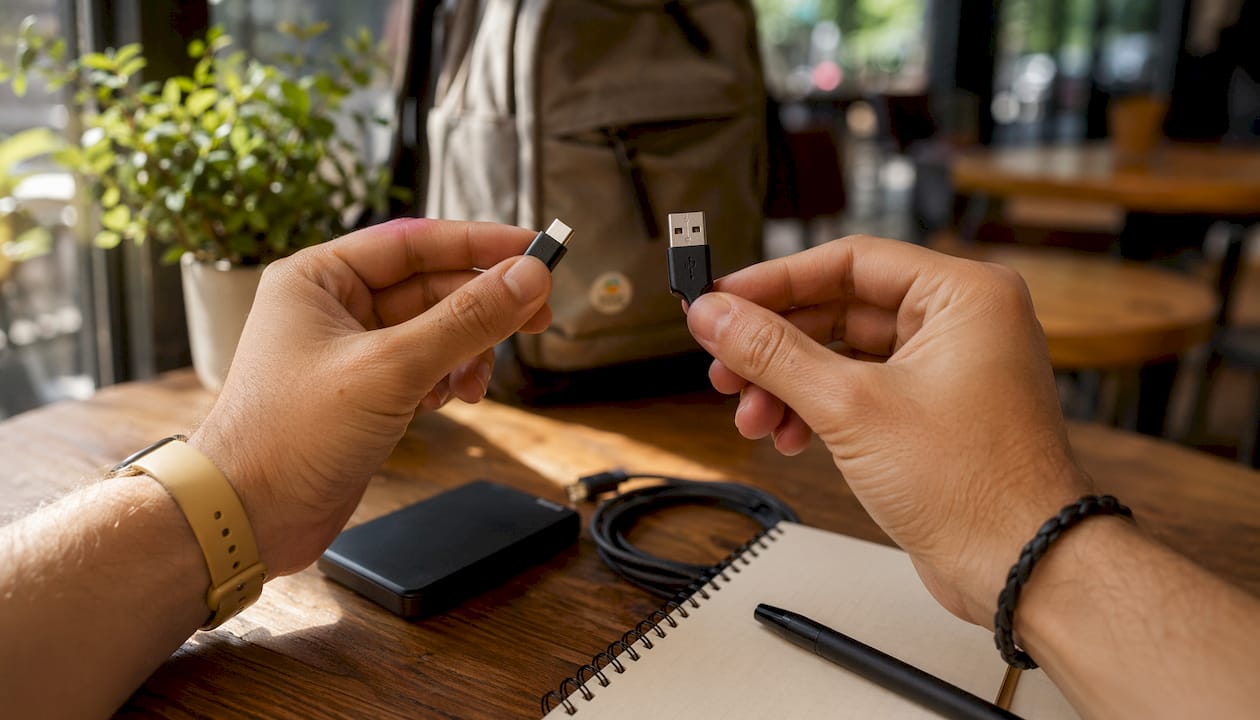
The size gap is significant. USB-C connectors measure approximately 8.4mm by 2.6mm, making them roughly the size of a Micro-USB plug. USB-A connectors are nearly three times wider. That size difference directly affects device design. Thinner laptops and phones can use USB-C ports without adding bulk, which is why manufacturers have been dropping USB-A ports from premium devices for years.
Here is what the physical differences mean in practice:
- USB-A requires a specific orientation, so you often need two attempts to plug in correctly.
- USB-C inserts either way, reducing wear on both the cable and the port over time.
- USB-A ports add thickness to a device chassis, limiting how slim a design can be.
- USB-C ports fit into thin-and-light laptops, tablets, and smartphones without compromise.
- USB-A cables have different connectors at each end (one large, one small), while USB-C cables can be identical at both ends.
Pro Tip: If your laptop has both USB-A and USB-C ports, check the port icons. A lightning bolt symbol indicates Thunderbolt support, and a “D” symbol indicates DisplayPort. Those icons tell you what the port can actually do beyond basic charging.
Is USB-C faster? Speed and power delivery compared
USB-C is significantly faster than USB-A, and the gap widens with each new generation of the standard. USB-C supports data transfer speeds up to 80Gbps via USB4 Version 2.0, while USB-A tops out at 5–20Gbps depending on the generation. That means USB-C can move a 10GB file in seconds rather than minutes.
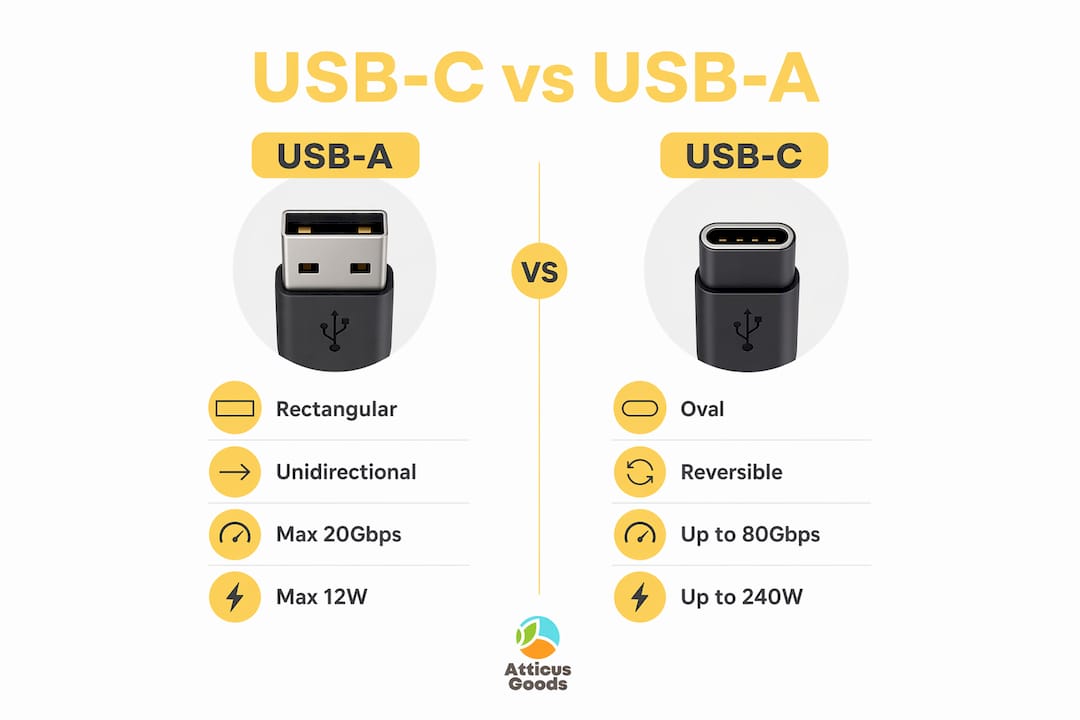
Power delivery tells an even bigger story. USB-A power delivery is generally 5V at 0.5–2.4A, which translates to a maximum of roughly 12W. USB-C with Extended Power Range reaches 48V at 5A, delivering up to 240W. That is enough to charge a high-performance laptop, a gaming device, or even some small monitors through a single cable.
| Feature | USB-A | USB-C |
|---|---|---|
| Max data speed | 5–20Gbps (USB 3.x) | 80Gbps (USB4 v2.0) |
| Max power output | ~12W | 240W (Extended Power Range) |
| Reversible connector | No | Yes |
| Video output | No | Yes (DisplayPort Alt Mode) |
| Fast charging support | No | Yes (USB Power Delivery) |
USB-A’s limitations are rooted in its origins. USB-A was designed in the 1990s to prioritize cost and basic compatibility, and it was never built to handle modern fast-charging voltages or high-bandwidth video protocols. That design ceiling is now a hard wall.
Pro Tip: A USB-A to USB-C cable does not unlock USB-C speeds. The cable caps performance at USB-A port limits, so you get USB-A data rates and no fast charging. For full USB-C performance, both the port and the cable must be USB-C.
One more detail worth knowing: high-wattage USB-C charging requires a cable with an e-marker chip. These chips communicate safe power levels between the charger and the device. A standard USB-C cable without an e-marker chip cannot safely carry 100W or more. Always check cable specs before using a high-power charger. For guidance on selecting the right charger, the USB-C charger buying guide at Atticus Goods covers the key specs to look for.
Video output and multi-function capabilities of USB-C
USB-C is the only USB connector that natively supports video output. USB-C carries video signals to external monitors using DisplayPort Alt Mode, while USB-A has no wiring for video at all. This is one of the most practical USB-C advantages for anyone working with a laptop and an external display.
The real-world impact is significant:
- A single USB-C cable can connect your laptop to a 4K monitor while simultaneously charging the laptop and transferring data.
- USB-C docking stations turn one port into a full desktop setup with HDMI, Ethernet, USB-A ports, and power delivery.
- Thunderbolt 4 and Thunderbolt 5 ports use the USB-C connector and support even higher bandwidth for daisy-chaining multiple monitors.
- USB-A requires a separate dedicated video cable (HDMI, DisplayPort) because it cannot carry video signals.
USB-C hubs and docks can turn a single port into multiple connections handling charging, video, Ethernet, and peripherals simultaneously. This is especially useful for thin laptops that ship with only one or two USB-C ports. A quality hub effectively multiplies your connectivity without adding a tangle of cables. Atticus Goods has a guide on choosing the right USB-C hub if you need help matching a hub to your specific setup.
USB-C was designed by USB-IF members including Apple, Intel, and Samsung as a universal connector for power, data, and video. The goal was to reduce e-waste and simplify the user experience by eliminating the need for multiple cable types. That design goal has largely been achieved in premium devices, though the transition is still ongoing across the broader market.
USB-C compatibility and how to handle the transition
USB-C compatibility is not automatic just because a port has the right shape. A USB-C port may only support charging or USB 2.0 data speeds despite looking identical to a full-featured port. This is the most common source of confusion for buyers upgrading their accessories.
Here is how to navigate the transition without wasting money:
- Check port icons before buying accessories. A lightning bolt means Thunderbolt support. A “D” symbol means DisplayPort. No icon usually means basic charging and data only.
- Use USB-A to USB-C adapters for legacy devices. A USB-A to USB-C adapter lets older USB-A ports connect to USB-C devices, but performance stays at USB-A levels.
- Prioritize USB-C for new purchases. Tech experts advise prioritizing USB-C for new devices to take full advantage of speed and power capabilities.
- Verify cable ratings for high-power charging. Not every USB-C cable supports 100W or 240W. Look for cables labeled with their wattage rating or marked as USB Power Delivery certified.
- Keep USB-A accessories working with a hub. A USB-C hub with USB-A ports lets you run older mice, keyboards, and flash drives from a USB-C-only laptop without replacing everything at once.
USB-A remains common but is now considered a legacy port, and new devices increasingly ship with USB-C only. That shift is accelerating. Buying USB-C accessories now means your gear stays compatible as older ports disappear from future hardware.
Pro Tip: When shopping for USB-C cables for a 4K monitor, look for cables rated for DisplayPort 1.4 or higher. A cable that only supports USB 2.0 speeds will not carry a 4K signal. Atticus Goods has a guide on USB-C cables for 4K monitors that breaks down exactly what to look for.
Key Takeaways
USB-C outperforms USB-A in speed, power, and versatility, and every new device purchase should prioritize USB-C to stay compatible with current and future hardware.
| Point | Details |
|---|---|
| Physical design | USB-C is smaller, oval, and reversible; USB-A is rectangular and inserts one way only. |
| Speed advantage | USB-C reaches 80Gbps via USB4 v2.0; USB-A tops out at 20Gbps in its fastest form. |
| Power delivery | USB-C supports up to 240W charging; USB-A maxes out at roughly 12W. |
| Video output | Only USB-C supports native video via DisplayPort Alt Mode; USB-A cannot carry video. |
| Port appearance warning | A USB-C shape does not guarantee full features. Always check port icons and device specs. |
Why I think most people underestimate the USB-C transition
The USB-C vs USB-A debate gets framed as a technical spec comparison, but the real issue is that most people do not realize how much USB-A is already holding them back. I have watched people buy a new laptop with a Thunderbolt 4 port and then plug in a USB-A hub, effectively capping their entire setup at 2008-era performance. The hardware is capable. The cable choice is not.
The part that trips people up most is the “all USB-C ports look the same” problem. I have tested ports on budget laptops that carry the USB-C shape but only support USB 2.0 speeds and basic 5W charging. That is worse than a USB-A 3.0 port in every measurable way. The shape is not the spec. Reading the fine print on a device’s port capabilities before buying accessories saves real money and real frustration.
My practical advice: replace cables and chargers with USB-C versions as they wear out, not all at once. A good USB-C hub with USB-A ports keeps your existing peripherals running while you transition. And when you buy a new cable, spend a few extra dollars on one with a wattage rating printed on the connector. That label tells you the cable has an e-marker chip and can safely handle high-power charging. Cheap, unlabeled cables are a genuine risk at 100W and above.
USB-A will be around for years on older gear, in cars, and on budget devices. But every new purchase you make should default to USB-C. The performance gap is too wide to ignore, and the compatibility direction is clear.
— Matthew Vista
USB-C accessories available at Atticus Goods
Upgrading your setup does not require replacing everything at once. Atticus Goods carries a wide selection of USB-C cables, hubs, chargers, and adapters to cover every stage of the transition, whether you are running a fully USB-C setup or still mixing in older USB-A devices.
For readers building a cleaner desk setup, the Logitech Pebble 2 Combo wireless keyboard and mouse is a strong starting point. It connects via Logi Bolt or Bluetooth, charges via USB-C, and works across multiple devices. Atticus Goods ships next day across the United States, so your accessories arrive fast. Browse the full electronics catalog at atticusgoods.com to find cables, hubs, and chargers matched to your specific devices.
FAQ
What is the main difference between USB-C and USB-A?
USB-C is smaller, reversible, and supports faster data transfer, higher power delivery, and video output. USB-A is the older, rectangular connector limited to basic data and low-wattage charging.
Does USB-C charge faster than USB-A?
Yes. USB-C with USB Power Delivery supports up to 240W, while USB-A maxes out at roughly 12W. Fast charging on modern smartphones and laptops requires a USB-C port and a compatible charger.
Can I use a USB-A to USB-C cable for full USB-C performance?
No. A USB-A to USB-C cable caps performance at USB-A port limits, meaning no fast charging and no video output. Full USB-C performance requires a USB-C port on both the device and the charger or hub.
Do all USB-C ports support video output?
No. A USB-C port’s shape does not guarantee video output. Only ports that support DisplayPort Alt Mode or Thunderbolt can drive an external monitor. Check your device specs or look for a “D” icon next to the port.
Is USB-A becoming obsolete?
USB-A is considered a legacy port and is being phased out of new premium devices. It remains common on older hardware, budget devices, and accessories, but USB-C is the current standard for new purchases.