

Upgrading office Wi-Fi access points is the process of replacing or adding wireless access points to improve wireless coverage, speed, and reliability across your office network. Poor wireless performance costs real productivity. Dropped video calls, slow file transfers, and dead zones are symptoms of aging hardware, not bad luck. Wi-Fi 6 and Wi-Fi 6E access points deliver up to 9.6 Gbps per unit, but only when the infrastructure behind them can keep up. This guide walks you through every stage of a successful wireless network upgrade, from site survey to final configuration.
What to assess before you upgrade office wi-fi access points
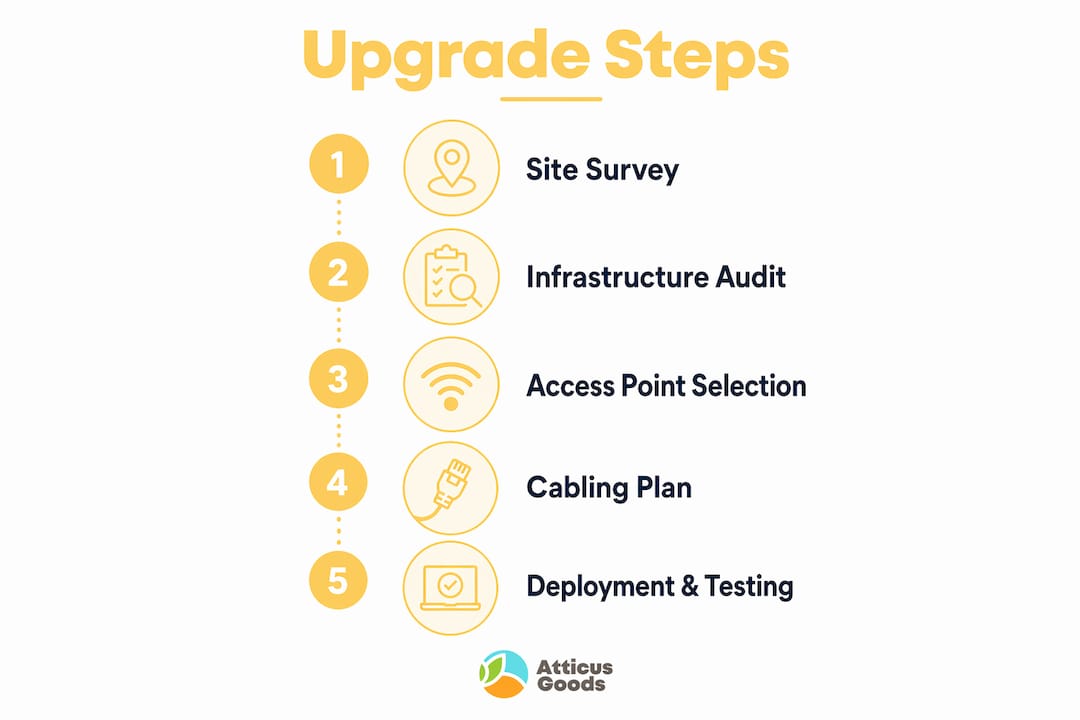
Planning before deployment prevents the most common and expensive upgrade mistakes. Adding access points without a baseline assessment is the leading cause of interference, dead zones, and wasted budget. The UniFi Nerds planning checklist identifies headcount, device counts, critical applications, high-density zones, guest needs, and IoT requirements as the core inputs for any wireless network upgrade. Skipping even one of these creates gaps you will not find until users start complaining.
Conduct a wireless site survey
A site survey maps your physical environment against your wireless requirements. Walk the floor with a laptop running survey software such as Ekahau Pro or NetSpot to measure signal strength, channel utilization, and interference sources. Note building materials: concrete walls, metal shelving, and glass partitions all attenuate signal differently. Document every location where coverage drops below acceptable thresholds.

Audit your existing infrastructure
Your cabling, switches, and PoE budget determine what your new access points can actually deliver. Check whether your current switches support PoE+ or PoE++ and how much total power budget remains. Verify cable categories: Cat5e limits you to 1 Gbps, while Cat6A supports 10 Gbps and handles the heat generated by PoE++ devices without voltage drop. Review switch port speeds and uplink capacity before you order a single access point.
Data to collect during your assessment:
- Total device count per floor or zone (laptops, phones, tablets, IoT sensors)
- Applications requiring low latency (VoIP, video conferencing, cloud ERP)
- Locations of existing cable drops versus intended AP mounting points
- Current channel utilization on 2.4 GHz and 5 GHz bands
- Guest and BYOD traffic volumes
Pro Tip: Mark your floor plan with exact ceiling grid coordinates for each planned AP location before pulling cable. Mislocated cable drops versus AP mounting points are the most common cause of costly installation rework.
How to choose the best access points for your office
The right access point depends on your density, throughput requirements, and existing infrastructure. Wi-Fi 6 (802.11ax) is the current standard for most office deployments. Wi-Fi 6E adds the 6 GHz band, which reduces congestion in high-density environments like open-plan offices with 50 or more concurrent users. Wi-Fi 7 reaches up to 46 Gbps theoretical throughput but requires infrastructure upgrades that most small offices cannot yet justify.
Enterprise vs. smb-grade access points
Enterprise-grade access points from Cisco Meraki, Aruba Networks, and Ubiquiti UniFi offer centralized cloud management, advanced radio resource management, and granular VLAN controls. SMB-grade options from Netgear and TP-Link Omada provide most of the same features at lower price points and with simpler setup. The Netgear WAX210 is a solid entry point for small offices, while the Netgear WAX620 handles denser environments with its 3.6 Gbps aggregate throughput and 2.5G Ethernet uplink.
AP comparison: key specs at a glance
| Model | Wi-Fi Standard | Max Throughput | Uplink Port | Best For |
|---|---|---|---|---|
| Netgear WAX210 | Wi-Fi 6 | 1.8 Gbps | 1G PoE+ | Small offices, low density |
| Netgear WAX620 | Wi-Fi 6 | 3.6 Gbps | 2.5G PoE+ | Medium offices, mixed density |
| Ubiquiti UniFi U6 Pro | Wi-Fi 6 | 5.3 Gbps | 2.5G PoE+ | High-density open plans |
| Aruba AP-635 | Wi-Fi 6E | 3.9 Gbps | 2.5G PoE++ | Dense, latency-sensitive environments |
Key selection criteria:
- Match the AP’s uplink port speed to your switch’s available port speed
- Confirm PoE class compatibility (PoE+, PoE++, or standard PoE) with your switch
- Choose cloud-managed platforms when you manage multiple sites or lack on-site IT staff
Pro Tip: Buy one or two units of your chosen model before committing to a full deployment. A pilot test on one floor reveals compatibility issues and coverage gaps before they affect the entire office.
How to plan infrastructure and cabling for your network upgrade
Access point hardware is only as good as the wired network feeding it. Upgrading APs without upgrading backhaul and switches creates a bottleneck that negates the performance gains from new hardware. Infrastructure planning is where most small business upgrades fall short.
PoE budget and cable planning
PoE power at the switch port is not the same as usable power at the AP radio. Thermal loss and voltage drop along the cable reduce available power, especially over longer runs. Plan your PoE budget with a 20–25% safety margin above your calculated peak draw. A real-world office migration case study showed a 600W PoE budget with a measured draw of 120–150W, which is the kind of headroom that prevents AP performance degradation during peak hours.
Infrastructure upgrade steps:
- Calculate total PoE draw for all planned APs, cameras, and VoIP phones
- Add 20–25% to that figure to establish your minimum switch PoE budget
- Replace Cat5e runs to AP locations with Cat6A to support PoE++ and 10G backhaul
- Upgrade switch uplinks to multi-gigabit (2.5G or 10G) ports to prevent uplink saturation
- Verify that patch panels and keystone jacks are rated for Cat6A to avoid hidden bottlenecks
Switch port and VLAN planning
| Infrastructure Element | Minimum Spec | Recommended Spec |
|---|---|---|
| AP uplink cable | Cat6 | Cat6A |
| Switch port speed | 1G PoE+ | 2.5G PoE+ |
| Switch uplink | 1G | 10G |
| PoE budget margin | 15% | 25% |
VLAN segmentation is not optional for any office with guest access or IoT devices. Map each SSID to a dedicated VLAN before deployment. Corporate traffic, guest traffic, and IoT devices should never share the same broadcast domain. Review network security strategies for cloud-connected offices to understand how VLAN design interacts with firewall and routing policies.
Pro Tip: Check your switch type and capabilities before purchasing APs. The switch port speed determines whether your new Wi-Fi 6 hardware delivers its rated throughput or gets throttled at the wired edge.
Best practices for deploying and configuring upgraded access points
Deployment execution determines whether your planning translates into real performance. The most common failure point is AP placement. Ceiling-mounted APs should be positioned to provide overlapping coverage of 15–20% between adjacent units. This overlap supports seamless roaming without creating co-channel interference.
AP placement and channel configuration
- Mount APs at ceiling height in the center of coverage zones, not in corners or near metal obstructions
- Assign non-overlapping channels: 1, 6, and 11 on 2.4 GHz; separate non-overlapping channels on 5 GHz
- Set transmit power to the lowest level that achieves required coverage. High power causes more interference than it solves in dense environments
- Enable band steering to push capable devices to 5 GHz or 6 GHz bands
- Disable legacy 802.11b rates to improve overall network efficiency
SSID, VLAN, and security configuration
Enable client isolation on guest SSIDs and map them to a dedicated VLAN with firewall rules that block routing to corporate subnets. A default-deny firewall policy on the guest VLAN with limited outbound ports is the correct baseline. Test segmentation by attempting to reach a corporate IP from a guest-connected device. If routing fails, your segmentation is working.
Validation checklist before going live:
- Generate a post-deployment coverage map using Ekahau or NetSpot and compare it to your pre-deployment survey
- Run iPerf3 throughput tests from multiple locations to confirm expected speeds
- Verify roaming behavior by walking the floor while on a VoIP call
- Confirm VLAN isolation by testing guest-to-corporate routing (it should fail)
- Document final AP placement, channel assignments, and VLAN mappings for future reference
Key takeaways
A successful office wireless network upgrade requires infrastructure readiness, structured planning, and validated deployment before any access point delivers its rated performance.
| Point | Details |
|---|---|
| Start with a site survey | Map coverage gaps, device counts, and cable locations before purchasing any hardware. |
| Match infrastructure to AP specs | Upgrade to Cat6A cabling and multi-gigabit switch ports to avoid wired bottlenecks. |
| Plan PoE budget with margin | Add a 20–25% safety buffer above peak PoE draw to prevent AP performance degradation. |
| Segment traffic with VLANs | Map guest and IoT SSIDs to dedicated VLANs with firewall default-deny policies. |
| Validate before full rollout | Pilot one floor first, then generate coverage maps and run throughput tests to confirm results. |
Why most office wi-fi upgrades underdeliver
I have reviewed dozens of office wireless projects where the hardware was excellent and the results were disappointing. The pattern is almost always the same: someone ordered access points, mounted them where the old ones were, and called it done. No survey. No infrastructure audit. No channel plan.
The uncomfortable truth is that Wi-Fi performance is a system problem, not a hardware problem. Replacing a five-year-old AP with a Wi-Fi 6 unit connected to a 1G switch port over Cat5e gives you maybe 15% better real-world throughput. That is not an upgrade. That is an expensive lateral move.
What actually works is treating the wired edge as part of the wireless project. When I see a PoE budget configured with proper margin and Cat6A runs to every AP location, the deployment almost always succeeds. When I see a switch with a 150W PoE budget powering 12 APs rated at 25W each, I know the project will fail before the first user connects.
The other mistake I see constantly is over-trusting vendor coverage estimates. Vendors publish coverage radius numbers in ideal conditions. Your office has concrete columns, glass walls, and a server room that radiates RF noise. Run a real survey with real tools. The 30 minutes you spend with NetSpot or Ekahau will save you three return visits and a lot of frustrated users.
Start small, measure everything, and document what you deploy. An incremental rollout by floor or department is not a sign of caution. It is the sign of someone who has done this before.
— Matthew Vista
Upgrade your network hardware at atticus goods
Ready to put this plan into action? Atticus Goods carries a broad selection of Wi-Fi 6 access points, multi-gigabit network switches, and Cat6A cabling accessories, all with next-day shipping across the United States. Whether you are outfitting a five-person office or a 200-seat floor, the product catalog covers the hardware you need at competitive prices.
The Netgear WAX210 Wi-Fi 6 access point is a strong starting point for small office deployments, and the Netgear 5-Port Multi-Gigabit Switch pairs with it to eliminate the wired bottleneck that limits most upgrades. Browse the full networking catalog at Atticus Goods to find the right combination of hardware for your office upgrade project.
FAQ
What is a wi-fi access point upgrade?
A Wi-Fi access point upgrade replaces existing wireless hardware with newer units that support faster standards such as Wi-Fi 6 or Wi-Fi 6E. The goal is to improve coverage, throughput, and the number of devices the network can support simultaneously.
How many access points does an office need?
The number depends on office size, layout, building materials, and device density. A general starting point is one access point per 1,500–2,500 square feet, adjusted based on your site survey results and the AP’s rated coverage radius.
Do i need to upgrade my switches when i upgrade access points?
Yes, in most cases. Wi-Fi 6 access points with 2.5G uplink ports deliver no benefit when connected to a 1G switch port. Upgrading switch ports to multi-gigabit speeds is a required step for any meaningful performance improvement.
What cable type is required for PoE++ access points?
Cat6A is the recommended cable for PoE++ deployments. It handles the higher current loads without the heat-induced voltage drop that degrades performance on Cat5e or standard Cat6 runs.
How do i secure guest wi-fi on an upgraded network?
Map your guest SSID to a dedicated VLAN and apply a default-deny firewall policy that blocks all routing to corporate subnets. Enable client isolation on the guest SSID and test the segmentation by attempting to reach an internal IP from a guest-connected device.