

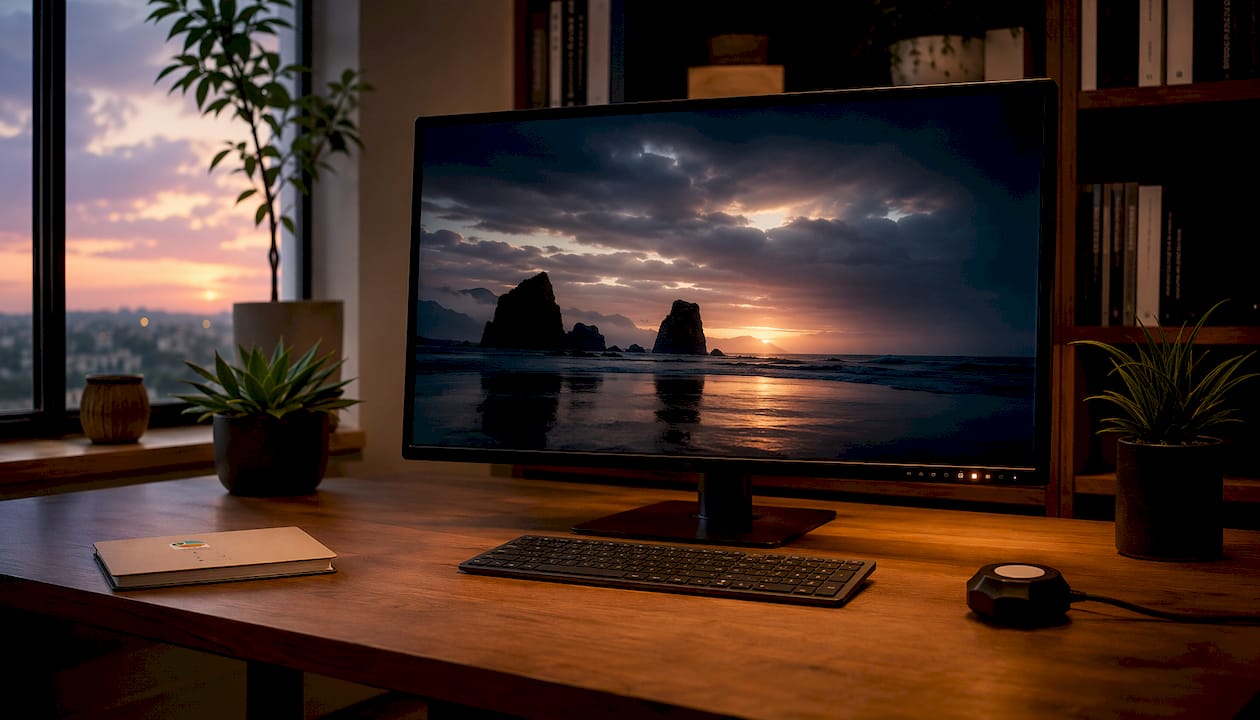
An HDR display reproduces a far wider range of brightness and color than a standard SDR screen, keeping detail in both the brightest highlights and the deepest shadows simultaneously. Where SDR clips a sunlit window to flat white or crushes a dark hallway to solid black, HDR holds the texture in both.
TL;DR — two things to check immediately:
- Look for a VESA DisplayHDR certification tier on the spec sheet (VESA DisplayHDR certification is recommended for a visible improvement).
- Confirm the format: HDR10 is the baseline; Dolby Vision or HDR10+ adds dynamic metadata for better per-scene tone mapping.
HDR pays off most for movies, gaming, and photo or video editing. On entry-level screens with vague “HDR” branding and no certification, the real-world improvement over SDR is often minimal.
Table of Contents
- How does HDR actually work on a display?
- Which HDR formats and standards should you know?
- What display specs actually determine HDR quality?
- Where does HDR content come from, and what does your setup need?
- How to tell if a display’s HDR is worth buying
- Common HDR myths and when HDR actually looks worse
- Quick HDR setup checklist by platform
- Atticus Goods’ practical HDR buying recommendations
- Key Takeaways
- The HDR spec sheet is not the whole story
- Shop HDR displays at Atticus Goods
- Useful sources and further reading
How does HDR actually work on a display?
HDR is not a single switch. It is the result of four hardware and signal factors working together: peak luminance, black level, color gamut, and bit depth.

Luminance and dynamic range. Brightness on a display is measured in nits (candelas per square meter). SDR content is mastered to a 100-nit diffuse white. HDR content can be mastered up to 1,000, 4,000, or even 10,000 nits, depending on the format. The display does not need to hit those mastering peaks, but the wider the gap between its brightest white and its darkest black, the more convincing the HDR image. HDR can improve contrast by more than 100x compared to SDR, which is why the perceived difference is so dramatic on a well-implemented panel.
Bit depth and banding. SDR content typically uses 8-bit color, which gives 256 steps per channel. HDR content uses 10-bit or higher, yielding 1,024 steps per channel. More steps mean smoother gradients in skies, skin tones, and dark scenes. An 8-bit panel displaying HDR content will often show visible banding, the staircase-like color breaks that make a sunset look posterized.
The core insight: HDR is as much about the range between the brightest and darkest parts of an image as it is about absolute peak brightness. A 600-nit display with excellent black levels can look more convincingly HDR than a 1,000-nit panel with poor contrast.
Tone mapping and metadata. HDR content is mastered at luminance levels most consumer displays cannot reach. Tone mapping is the process that translates the mastered signal to what the display can actually show. Static metadata (used by HDR10) sets a single tone-map curve for the entire title. Dynamic metadata (used by Dolby Vision and HDR10+) adjusts that curve scene by scene or even frame by frame, which matters most on midrange panels that lack the headroom to handle a static curve gracefully.
Local dimming. LCD panels use a backlight that illuminates the entire screen. Local dimming divides that backlight into independently controlled zones, so dark areas of the image can go darker while bright areas stay bright. More zones generally mean better contrast. OLED panels skip this entirely because each pixel generates its own light and can switch off completely, producing true black. That is why OLED black levels are so difficult for LCD to match, even with aggressive local dimming.
Pro Tip: When comparing LCD HDR monitors, check the number of local-dimming zones in the spec sheet, not just whether local dimming is listed. A panel with 8 zones will show noticeable blooming (a halo of light around bright objects on dark backgrounds); 500+ zones is where the effect becomes much less visible.
Which HDR formats and standards should you know?
Six names come up constantly in HDR discussions: HDR10, Dolby Vision, HDR10+, HLG, SMPTE ST 2084 (PQ), and VESA DisplayHDR. Each plays a different role.
- HDR10 is the open, royalty-free baseline. It uses static metadata, supports up to 10-bit color, and is the minimum standard you should expect from any HDR display or source. Virtually every HDR TV, monitor, console, and streaming service supports it.
- Dolby Vision is Dolby’s proprietary format. It uses dynamic metadata (scene-by-scene or frame-by-frame tone mapping), supports up to 12-bit color, and requires a licensing fee from manufacturers. It is widely available on Netflix, Disney+, and Apple TV+, and on many mid-to-high-end TVs.
- HDR10+ is Samsung and Amazon’s open alternative to Dolby Vision. It adds dynamic metadata to the HDR10 framework without a licensing fee. Support is growing but still narrower than Dolby Vision.
- HLG (Hybrid Log-Gamma) was developed by the BBC and NHK for live broadcast. It is backward-compatible with SDR displays and is the format used by broadcast networks and some streaming services for live sports and events. For more detail on HLG’s broadcast role, it is worth reading through the technical spec.
- SMPTE ST 2084 (Perceptual Quantizer / PQ) is the electro-optical transfer function (EOTF) that underlies HDR10, Dolby Vision, and HDR10+. It defines how the signal’s numerical values map to display luminance. When you see “PQ” in a spec sheet, this is what it refers to.
- VESA DisplayHDR is the PC industry’s open certification program. It defines testable tiers and only allows the logo after independent testing.
| Format | Metadata type | Bit depth | Typical use |
|---|---|---|---|
| HDR10 | Static | 10-bit | Universal baseline: streaming, Blu-ray, games |
| Dolby Vision | Dynamic (frame-level) | Up to 12-bit | Premium streaming, cinema-grade TVs |
| HDR10+ | Dynamic (scene-level) | 10-bit | Streaming, Samsung/Amazon ecosystem |
| HLG | Hybrid (no metadata) | 10-bit | Live broadcast, backward-compatible SDR |
| SMPTE ST 2084 (PQ) | EOTF (underlying curve) | N/A | Foundation for HDR10, Dolby Vision, HDR10+ |
| VESA DisplayHDR | Certification tier | Tier-dependent | PC monitors, verified performance |
Dynamic metadata formats like Dolby Vision and HDR10+ matter most on entry- and midrange screens that need scene-by-scene tone remapping. On a top-tier display with wide luminance headroom, the gap between static and dynamic metadata narrows considerably.
What display specs actually determine HDR quality?
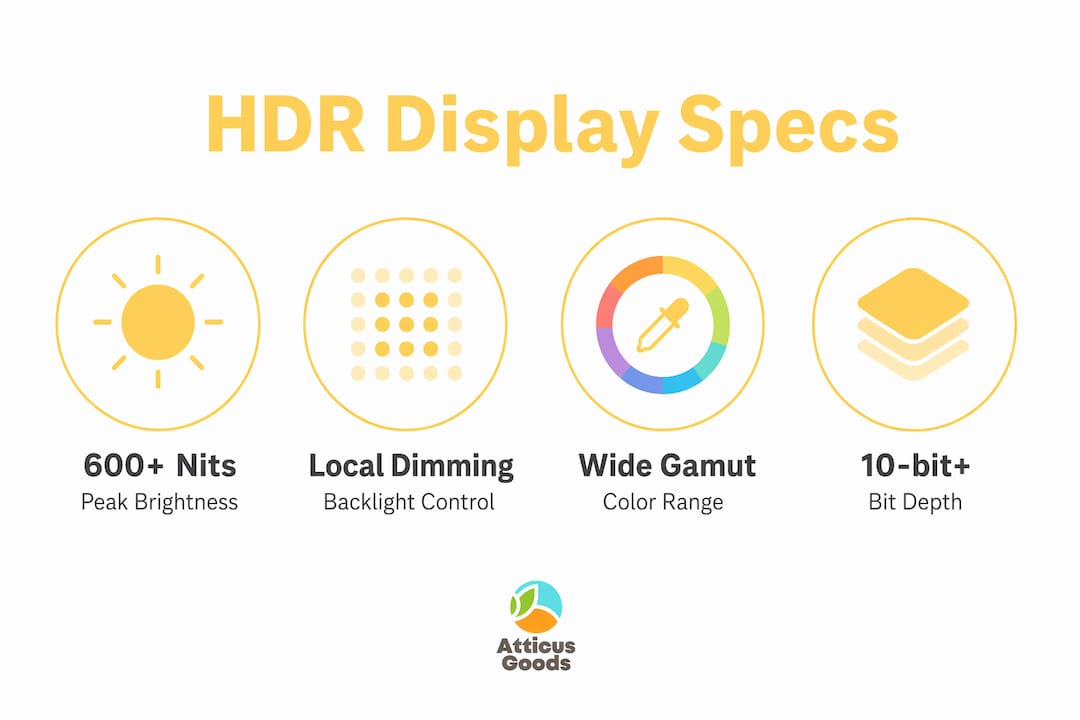
Peak brightness, black level, local dimming, color gamut, and bit depth are the five numbers that separate a genuinely impactful HDR panel from one that just carries the label.
Recommended spec targets
Seeking at least 600 nits is the practical entry threshold for a visible HDR benefit; 1,000 nits or more is where specular highlights (glints on metal, sunlight on water) start to look genuinely different from SDR. Premium HDR displays are ideally recommended to reach at least 1,000 nits of peak brightness for full HDR impact on LCD panels. OLED panels compensate with near-infinite contrast ratios, so a 700-nit OLED can outperform a 1,000-nit LCD with poor local dimming in dark-scene content.
VESA DisplayHDR tiers explained
VESA’s DisplayHDR specification defines luminance, color gamut, bit depth, and other performance attributes at each tier, and the logo is only permitted after testing. Here is what each tier implies in practice:
| DisplayHDR tier | Peak brightness | Local dimming | Typical use case |
|---|---|---|---|
| DisplayHDR 400 | 400 nits | Not required | Entry-level; modest SDR-to-HDR improvement |
| DisplayHDR 500 | 500 nits | Not required | Budget HDR; limited highlight pop |
| DisplayHDR 600 | 600 nits | Required | Visible HDR benefit; recommended minimum |
| DisplayHDR 1000 | 1,000 nits | Required | Strong HDR highlights; premium LCD range |
| — | 1,000 nits or more | Required | High-end LCD; near-reference performance |
| DisplayHDR True Black | Varies (low black level) | Emissive (OLED) | Deep blacks; ideal for dark-room viewing |
DisplayHDR 400 is technically certified, but reviewers and test labs consistently find that panels at this tier deliver only modest improvements over SDR because local dimming is not required and peak brightness is limited.
Color gamut matters alongside brightness. DCI-P3 coverage above 90% is a strong signal for HDR color performance. Rec.2020 is the wider target used in cinema mastering, but most consumer displays cover 70–80% of it at best.
Pro Tip: A spec sheet listing “HDR” with no certification tier, no peak-nit figure, and no local-dimming mention is a red flag. Manufacturers are not required to certify, so that label alone tells you nothing about actual performance.
Where does HDR content come from, and what does your setup need?
HDR content is widely available, but the entire chain from source to screen must support it. A certified HDR display connected to an SDR source still shows SDR.
HDR content sources
- Streaming: Netflix, Disney+, Prime Video, Apple TV+, and Max all offer HDR10 content; Dolby Vision titles are available on Netflix, Disney+, and Apple TV+. HDR10+ appears on Prime Video and some Samsung TV Plus content.
- Ultra HD Blu-ray: Physical discs carry HDR10 as standard; many also include a Dolby Vision or HDR10+ layer.
- Gaming: PlayStation 5, Xbox Series X/S, and modern PC games support HDR output natively. Many titles include per-game HDR calibration menus.
- PC content: HDR-enabled games, video players (VLC, Windows Media Player with correct codecs), and creative apps (Adobe Premiere Pro, DaVinci Resolve) can output HDR when the display and OS are configured correctly.
System requirements by platform
| Platform | Connection required | Key settings to check |
|---|---|---|
| Windows PC | HDMI 2.0+ or DisplayPort 1.4+ | Settings > System > Display > HDR toggle; GPU drivers; PlayReady DRM for protected content |
| PlayStation 5 / Xbox Series X | HDMI recommended | Console video output settings; TV HDMI input mode (UHD/Enhanced) |
| Smart TV (streaming apps) | Built-in or HDMI 2.0+ | Native app versions; HDMI UHD Color enabled on input |
| Laptop (built-in display) | Built-in panel | 1080p+ resolution and ~300 nits minimum for basic HDR playback per Microsoft guidance |
For Windows specifically, HDR playback requires an HDR10-capable display, a GPU with PlayReady hardware DRM support, the correct codecs for 10-bit video decoding, and the HDR toggle enabled in Display Settings.
How to tell if a display’s HDR is worth buying
The “HDR” label on a box means almost nothing without supporting specs. Here is what to verify before purchasing.
Check first:
- VESA DisplayHDR certification tier (DisplayHDR 600 minimum for a real improvement)
- Tested peak brightness in nits (manufacturer claims vs. independent test results)
- Local dimming: present or absent, and how many zones
- Panel type: OLED, QLED, IPS, VA (each has different contrast and brightness trade-offs)
- Color gamut: DCI-P3 coverage percentage
- Native 10-bit panel (not 8-bit + FRC dithering)
Questions to ask or look up:
- What is the tested peak brightness, not just the spec-sheet claim?
- How many local-dimming zones does the LCD panel use?
- Is the 10-bit spec native or achieved through dithering (often listed as “8-bit + FRC”)?
- Does the display support both HDR10 and at least one dynamic metadata format?
Red flags to walk away from:
- “HDR” branding with no certification tier and no nit figure listed
- Peak brightness under 400 nits on an LCD
- No local dimming on an LCD panel claiming HDR
- “8-bit + FRC” listed where the spec sheet implies full 10-bit
Pro Tip: Search for the exact model number on RTINGS.com before buying. Their measured peak brightness and local-dimming zone counts are far more reliable than manufacturer spec sheets, which often list best-case figures under conditions that do not reflect normal viewing.
Also worth reading before you buy: the common TV buying mistakes guide covers several HDR-related pitfalls that catch even experienced shoppers off guard.
Common HDR myths and when HDR actually looks worse
HDR improves image potential, but a poorly implemented display can produce results that look worse than a well-calibrated SDR screen.
Myth 1: “HDR is just about peak brightness.” Peak brightness matters, but black level and contrast ratio determine how dramatic the HDR effect actually looks. A display with mediocre black levels will look washed out even at 1,000 nits.
Myth 2: “Any HDR label means a great picture.” Test labs regularly find that low-cost displays labeled “HDR” deliver minimal benefit because they lack sufficient peak luminance and local dimming. The label is not regulated without certification.
Myth 3: “HDR always looks better in a bright room.” Ambient light reduces perceived contrast. The deeper blacks that make HDR so effective in a dim room are effectively washed out by room light bouncing off the screen.
The real-world failure mode most buyers don’t expect: An 8-bit panel with HDR enabled will often look worse than the same content in SDR, because the tone-mapping curve clips highlights to flat white and the limited bit depth introduces banding in gradients. Enabling HDR on an underpowered display is not neutral; it can actively degrade the image.
Practical ambient lighting note. Dim or controlled lighting is where HDR shows its biggest advantage. A bright living room with windows behind the viewer reduces the perceived contrast benefit significantly. If your primary viewing environment is a bright room, prioritize peak brightness (1,000+ nits) over black level, since the ambient light will obscure deep blacks anyway. For a dark home theater setup, OLED’s True Black performance becomes the dominant factor.
Quick HDR setup checklist by platform
Enabling HDR requires the right connection, the right settings, and HDR-encoded content; all three must be in place at the same time.
Windows
- Connect the display using HDMI 2.0 or higher, or DisplayPort 1.4 or higher.
- Open Settings > System > Display and toggle HDR on for the target display.
- Update GPU drivers to the latest version (NVIDIA, AMD, or Intel).
- For protected streaming content, confirm your GPU supports PlayReady hardware DRM.
- Install required codecs for 10-bit video decoding if prompted by Windows.
- In the HDR settings panel, use the Windows HD Color Settings calibration slider to balance SDR content brightness.
PlayStation 5 / Xbox Series X
- Go to Settings > Screen and Video > Video Output (PS5) or Settings > General > TV & Display Options (Xbox).
- Enable HDR output and set the resolution to 4K or 1080p HDR as appropriate.
- On the TV, switch the HDMI input to UHD Color or Enhanced mode (label varies by manufacturer).
- Run the console’s built-in HDR calibration tool.
- Enable per-game HDR settings within individual game menus where available.
Smart TV
- Enable HDMI UHD Color (Samsung), HDMI Enhanced Format (LG), or the equivalent setting on the input port being used.
- Use the TV’s native streaming apps rather than an external device where possible, since native apps often carry Dolby Vision or HDR10+ layers that external devices may not pass through.
- Set picture mode to Movie, Cinema, or Filmmaker Mode for the most accurate HDR rendering.
- Check for firmware updates; many HDR compatibility issues are resolved by manufacturer updates.
Common troubleshooting checks: wrong HDMI cable (use Premium High Speed or Ultra High Speed certified cables), incorrect input mode on the TV, outdated firmware, or GPU drivers that predate HDR support.
Atticus Goods’ practical HDR buying recommendations
For most living-room setups, the minimum worth buying is a DisplayHDR 600 certified display. Below that threshold, local dimming is not required by the spec, and the real-world improvement over a good SDR panel is hard to justify on price alone.
By price band:
- Entry ($200–$500): Expect DisplayHDR 400–500 performance. Adequate for casual HDR streaming; do not expect dramatic highlight pop. Look for VA panels, which offer better native contrast than IPS at this price.
- Mid-range ($500–$1,000): DisplayHDR 600–1000 is achievable. This is where local dimming becomes standard and the HDR experience becomes genuinely different from SDR. Good QLED and high-brightness IPS panels live here.
- Premium ($1,000+): OLED and high-zone-count QLED panels. OLED offers superior black level and motion performance; high-brightness QLED displays excel on peak brightness for bright-room viewing. Both deliver reference-grade HDR for the right use case.
Key trade-offs to keep in mind:
- OLED offers superior black levels and per-pixel control but typically peaks lower in brightness than premium LCD.
- High-zone-count LCD (500+ zones) can match OLED in many HDR scenarios while hitting higher peak brightness for bright rooms.
- For a monitor setup that doubles as a creative workstation, prioritize color gamut coverage (90%+ DCI-P3) alongside brightness.
Pro Tip: If you are building a living-room setup and cannot decide between OLED and high-nit LCD, ask one question: where is the room? A dark, dedicated viewing room favors OLED. A bright living room with afternoon sun favors a 1,000-nit+ LCD. The ambient light in your specific space matters more than the spec sheet.
Matthew Vista, who covers display technology and consumer electronics for Atticus Goods, also wrote the HDMI ARC guide and the 4K monitor calibration walkthrough for the Atticus Goods editorial library.
Key Takeaways
An HDR display delivers a meaningful upgrade over SDR only when peak brightness, local dimming, color gamut, and bit depth all meet a minimum threshold — certification is the fastest way to confirm that.
| Point | Details |
|---|---|
| HDR definition | Wider brightness range and color gamut than SDR; detail preserved in highlights and shadows simultaneously. |
| Minimum spec to buy | DisplayHDR 600 certification, at least 600 nits peak brightness, local dimming, and a native 10-bit panel. |
| Format hierarchy | HDR10 is the universal baseline; Dolby Vision and HDR10+ add dynamic metadata for better per-scene tone mapping. |
| Content requirement | HDR content must be encoded in HDR; the display, source, connection, and app all need to support it. |
| Atticus Goods guidance | Shop HDR-capable displays at Atticus Goods with next-day shipping across the United States. |
The HDR spec sheet is not the whole story
The display industry has a labeling problem, and it is worth saying plainly: “HDR” printed on a box is one of the least meaningful claims in consumer electronics right now. A $180 monitor and a $2,000 OLED TV can both carry that label, and the actual viewing experience between them is not a small difference. It is a different category of image quality entirely.
What frustrates me about most HDR explainers is that they spend too much time on format names and not enough on the single most important consumer insight: the label is unregulated without certification. VESA’s DisplayHDR program exists precisely because the industry needed a floor. A certified DisplayHDR 600 panel has been independently tested. An uncertified “HDR-compatible” panel has not.
The second thing most guides underplay is ambient lighting. Readers spend hours comparing nit counts and dimming zones, then set up their new display in a bright room with a window directly behind the couch. The perceived HDR advantage collapses in that environment. The best HDR setup decision you can make is often about room layout, not panel spec.
Buy certified. Dim the room. Then worry about the format.
Shop HDR displays at Atticus Goods
Atticus Goods carries a broad selection of HDR-capable monitors and TVs, with over 90,000 in-stock products and next-day shipping across the United States. Whether you are upgrading a home theater or building a premium electronics workstation, the catalog includes certified DisplayHDR panels across every price band.
Not sure which display fits your setup? The Atticus Goods blog includes calibration guides, connectivity walkthroughs, and compatibility checks to help you configure HDR correctly once the display arrives. Returns are straightforward, and the customer support team can help match specs to your use case. Browse the full display catalog at Atticus Goods and use the next-day shipping option to get your setup running this week. For a wireless peripheral to pair with your new monitor, the Logitech Pebble 2 Combo ships the same day.
Useful sources and further reading
The claims in this guide draw from primary standards bodies, platform documentation, and independent test labs. These are the sources worth bookmarking for deeper technical reading:
- VESA DisplayHDR — The official certification program; tier definitions, FAQs, and the certified product database.
- Microsoft HDR in Windows — Platform requirements, connection specs, codec requirements, and the Windows HDR toggle walkthrough.
- HowToGeek: What Is HDR in TVs and Monitors? — Consumer-facing explainer with practical nit and gamut guidance.
- Business Insider: HDR for TVs Explained — Streaming platform coverage and use-case breakdown.
- RTINGS — Independent measured test data for peak brightness, local dimming zones, and real-world HDR performance by model.
- Fu Jiang, “HDR Display Perception” (RIT) — Academic research on perceptual diffuse white, color gamut volume, and simultaneous dynamic range in HDR displays.