

A home router is the device that distributes your internet connection to every phone, laptop, smart TV, and thermostat in your house. Choosing the right home router means matching that device to your household size, ISP speed plan, and coverage needs. Get that match wrong and you pay for speed you cannot use or buy hardware that chokes under your device load. In 2026, the router market spans Wi-Fi 6, Wi-Fi 6E, and Wi-Fi 7 standards, with brands like Netgear, Asus, and TP-Link offering options at every price point.
How to choose the right home router for your needs
The single most reliable starting point is your device count. Household device density is the industry benchmark for router selection in 2026. That benchmark breaks down into three tiers:
- Small household (5–10 devices): A basic single-band or entry-level dual-band router handles this load without strain. Think a two-person apartment with a couple of phones, a laptop, and a smart TV.
- Medium household (10–20 devices): A mid-range Wi-Fi 6 router with MU-MIMO (multi-user, multiple input, multiple output) technology keeps traffic moving across simultaneous streams. A family of four with smart home gadgets falls here.
- Large household (20+ devices): A high-performance router or mesh system is the right call. Dense device environments need dedicated hardware that can manage dozens of concurrent connections without dropping speeds.
Your ISP speed plan is the second filter. Router tier must match your ISP plan for optimal performance. A 100 Mbps basic plan works fine with an entry-level router. A 300–500 Mbps mid-range plan needs a mid-tier router to actually deliver those speeds to your devices. A 1 Gbps or faster plan requires a high-end router with Multi-Gig ports. Buying a gigabit router for a 100 Mbps plan wastes money. Buying a basic router for a gigabit plan wastes your ISP bill.
Pro Tip: Count every connected device in your home, including smart bulbs, doorbells, and game consoles. Most people undercount by 30–40%. Buy for where your device count will be in two years, not where it is today.

What wi-fi standard and features should you look for?
Wi-Fi standards define the maximum speed, range, and efficiency your router can deliver. The three current standards each serve a different buyer.
| Standard | Best For | Key Advantage | Drawback |
|---|---|---|---|
| Wi-Fi 6 (802.11ax) | Most homes in 2026 | Stable, compatible, affordable | No 6 GHz band |
| Wi-Fi 6E | Power users, dense device homes | Adds 6 GHz band for less congestion | Fewer compatible client devices |
| Wi-Fi 7 (802.11be) | Early adopters, future-proofing | Highest throughput available | Expensive router and client hardware |
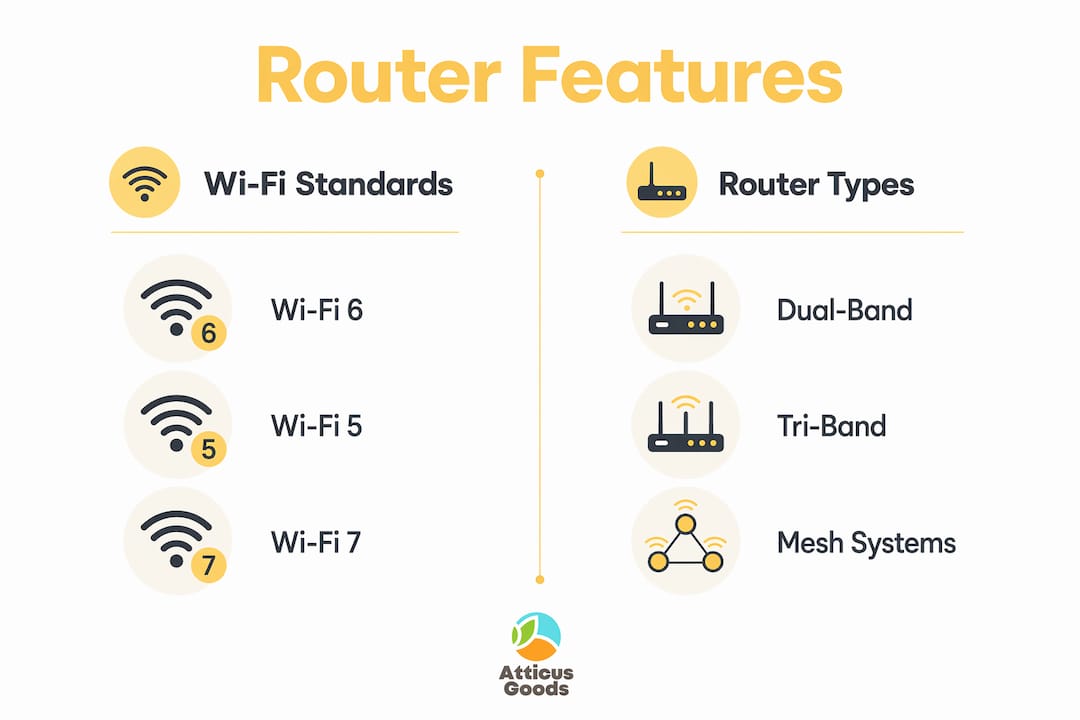
Wi-Fi 6 remains the practical choice for most homes in 2026. It balances performance, device compatibility, and cost in a way that Wi-Fi 7 simply cannot match for average consumers. Wi-Fi 7 routers cost significantly more, and you need Wi-Fi 7 client devices to see any benefit. Most phones, laptops, and tablets sold today are Wi-Fi 6 devices. The Netgear RAX5 is a strong example of a capable Wi-Fi 6 router that delivers real-world performance without the premium price tag of Wi-Fi 7.
Dual-band vs. tri-band routers
Dual-band routers broadcast on 2.4 GHz and 5 GHz simultaneously. The 2.4 GHz band travels farther but carries less data. The 5 GHz band is faster but shorter in range. Tri-band routers add a second 5 GHz band or a 6 GHz band, which reduces congestion in homes with many devices competing for bandwidth. For most households under 20 devices, dual-band Wi-Fi 6 is sufficient.
QoS and multi-gig ports
Quality of Service (QoS) settings let you tell the router which traffic gets priority. QoS prevents bandwidth-heavy downloads from disrupting video calls or online gaming. That matters when three people in the same house are streaming, working, and gaming at the same time. Multi-Gig ports (2.5 Gbps or 10 Gbps) matter only if your ISP delivers speeds above 1 Gbps. The Netgear 10G Multi-Gigabit Pro Router is built specifically for those high-speed plans.
Pro Tip: Apple recommends a single SSID across all bands with automatic firmware updates enabled. This keeps all your devices connecting to the strongest available band automatically and patches security vulnerabilities without manual effort.
Does your home size require a mesh wi-fi system?
Coverage is where many buyers make the most expensive mistake. They buy a powerful router and place it in the wrong spot, then wonder why the bedroom has no signal.
Signal drops significantly when passing through brick, concrete, or large metal objects. Elevated placement in a central location is the single biggest free improvement most homeowners can make. A router tucked inside a cabinet or placed on the floor loses a measurable portion of its effective range before the signal even reaches your walls.
Here is a practical size guide:
- Apartments under 1,000 sq ft: A single well-placed router handles coverage reliably.
- Homes 1,000–2,500 sq ft (single floor): A mid-range dual-band router in a central location covers most layouts.
- Homes 2,500–4,000 sq ft or multi-floor: A mesh system is the right call. Single routers create dead zones on upper floors and in far rooms.
- Homes over 4,000 sq ft: A mesh system with three or more nodes is the standard solution.
Mesh Wi-Fi systems provide consistent, spherical coverage that traditional directional antennas cannot match in large or multi-floor homes. Each mesh node communicates with the others to hand off your device as you move through the house. The Netgear Orbi RBK753P is a tri-band mesh system built for medium to large homes, with Wi-Fi 6 performance across all nodes.
Pro Tip: Channel congestion and poor placement cause most persistent Wi-Fi problems, not hardware failure. Before buying new equipment, move your router to a higher, more central position and check whether your 2.4 GHz channel overlaps with your neighbors.
How do you secure your home network router?
Router security is the most neglected part of home network setup. Most routers ship with default settings that leave your network exposed.
Follow these steps to lock down your router after setup:
- Change the default admin username and password. Default credentials are publicly documented for every major router model. Leaving them unchanged is the equivalent of a lock with the key still in it.
- Enable WPA3 encryption. WPA3 is the current security standard, and WPA2/WPA3 Mixed Mode is the right choice if you have older devices that do not support WPA3 alone.
- Disable remote management. Remote management lets anyone on the internet attempt to access your router’s admin panel. Turn it off unless you have a specific reason to use it.
- Disable WPS and UPnP. WPS (Wi-Fi Protected Setup) has known vulnerabilities. UPnP (Universal Plug and Play) allows devices to open ports automatically, which creates security gaps.
- Enable automatic firmware updates. Router manufacturers release patches for newly discovered vulnerabilities. Automatic updates apply those patches without requiring you to remember to do it manually.
For a deeper look at protecting your network data beyond the router itself, securing your home data covers additional steps including password managers and network segmentation.
Pro Tip: Set a separate guest network for visitors and smart home devices. This keeps your main devices isolated from anything that might be compromised, including that cheap smart plug you bought two years ago.
Key takeaways
Choosing the right router requires matching device density, ISP speed tier, coverage area, and security settings to a single piece of hardware.
| Point | Details |
|---|---|
| Match router tier to device count | Small homes need basic routers; large homes with 20+ devices need high-performance or mesh hardware. |
| Align router with ISP speed plan | A 1 Gbps plan requires Multi-Gig ports; a basic router wastes your internet bill on a fast plan. |
| Wi-Fi 6 is the practical standard | Wi-Fi 6 balances performance and compatibility for most homes in 2026 without the cost of Wi-Fi 7. |
| Use mesh for large or multi-floor homes | Mesh systems deliver consistent coverage where single routers create dead zones. |
| Lock down security settings immediately | Disable WPS, UPnP, and remote management; enable WPA3 and automatic firmware updates on day one. |
The mistake most people make when buying a router
I have watched homeowners spend $400 on a Wi-Fi 7 router and then place it inside a media cabinet surrounded by metal components. The result is worse performance than a $120 Wi-Fi 6 router sitting on a shelf in the center of the room. Hardware specs matter far less than placement and configuration.
The advice I give most often is this: separating your router from your Wi-Fi access points gives you far more flexibility than any all-in-one device. When Wi-Fi standards change, you replace only the access points, not the entire routing infrastructure. That approach extends the useful life of your network investment by years.
The other mistake I see constantly is buying for today’s device count. People count their current devices, buy accordingly, and then add a smart thermostat, a security camera, two new phones, and a gaming console within 18 months. Buy one tier above where you are now. The price difference between a mid-range and a high-performance router is rarely more than $50–$80, and it buys you years of headroom.
Wi-Fi 7 is genuinely impressive technology. But unless you have a specific use case like a home studio, a dedicated gaming setup, or a home office running multiple 4K video streams simultaneously, Wi-Fi 6 is the right call. Spend the savings on a quality mesh node for the far end of your house instead.
— Matthew Vista
Shop routers and network gear at atticus goods
Ready to put this home router buying guide into practice? Atticus Goods carries over 35,000 in-stock products, including a full selection of Netgear routers, mesh systems, and network accessories suited for every home size and ISP plan.
From entry-level Wi-Fi 6 routers for small apartments to tri-band mesh systems for large homes, Atticus Goods ships next-day across the United States. Browse the full networking and electronics catalog to find the right hardware at a competitive price, backed by customer reviews and fast delivery.
FAQ
How many devices can a home router handle?
Most mid-range routers handle 20–30 simultaneous connections reliably. High-performance and mesh routers support 50 or more devices without significant speed loss.
Is wi-fi 6 worth it over wi-fi 5 in 2026?
Yes. Wi-Fi 6 delivers better performance in dense device environments and is now the standard for most new devices. The price difference over Wi-Fi 5 routers is minimal in 2026.
When should i choose a mesh system instead of a single router?
Choose a mesh system for homes over 2,500 square feet, multi-floor layouts, or any space with thick walls and persistent dead zones. A single router cannot provide consistent coverage in those environments.
What is the most important security setting on a router?
Enabling WPA3 encryption and disabling WPS are the two highest-impact changes. Changing the default admin password is equally critical and takes under two minutes.
How often should i replace my home router?
Most routers perform well for 4–6 years. Replace yours when your ISP speed plan significantly exceeds the router’s rated throughput, or when the manufacturer stops releasing firmware updates.