

An office network switch is a hardware device that connects multiple wired devices within a local area network, directing traffic between them at the data link layer. Properly setting up office network switches determines whether your network runs fast and securely or becomes a bottleneck that slows every device on the floor. Brands like Netgear, Cisco, and Arista dominate the market, offering both unmanaged and managed options suited to different office scales. The right setup process depends on which type you deploy. This guide covers everything from pre-installation planning to advanced managed switch configuration and troubleshooting.
What equipment do you need before setting up office network switches?
Preparation prevents most installation failures. Gather your hardware and finalize your network design before touching a single cable.
Essential hardware checklist:
- Switch: Unmanaged for simple offices, managed for segmented or security-conscious environments
- Router: Acts as the DHCP and DNS server; the router is the network brain while the switch expands physical connections
- Ethernet cables: Cat5e minimum, Cat6 preferred for Gigabit speeds
- Console cable: Required for initial managed switch configuration (typically RJ45 to USB or DB9)
- Rack or wall mount: For organized, permanent installations
- UPS or power strip: Protects switches from power surges
Network design decisions to make first:
| Decision | Unmanaged Setup | Managed Setup |
|---|---|---|
| VLAN planning | Not required | Required before deployment |
| IP addressing scheme | Router handles it | Define management IP range |
| Port role assignment | Automatic | Explicit access and trunk ports |
| STP configuration | Not applicable | Plan root bridge placement |
For a small office with fewer than 20 devices, an unmanaged switch from Netgear’s GS series handles the job without any configuration overhead. For a growing business with separate networks for staff, guests, and VoIP phones, a managed switch from Cisco’s Catalyst line or Netgear’s Smart series is the right call. Draw a basic network diagram before installation. Knowing which devices connect where saves hours of troubleshooting later.
Pro Tip: Label every cable before you run it. A Brother P-Touch or Dymo LabelManager takes five minutes per rack and saves hours during any future troubleshooting session.
How to physically connect and power office network switches
Physical installation follows a consistent sequence regardless of switch brand or model.
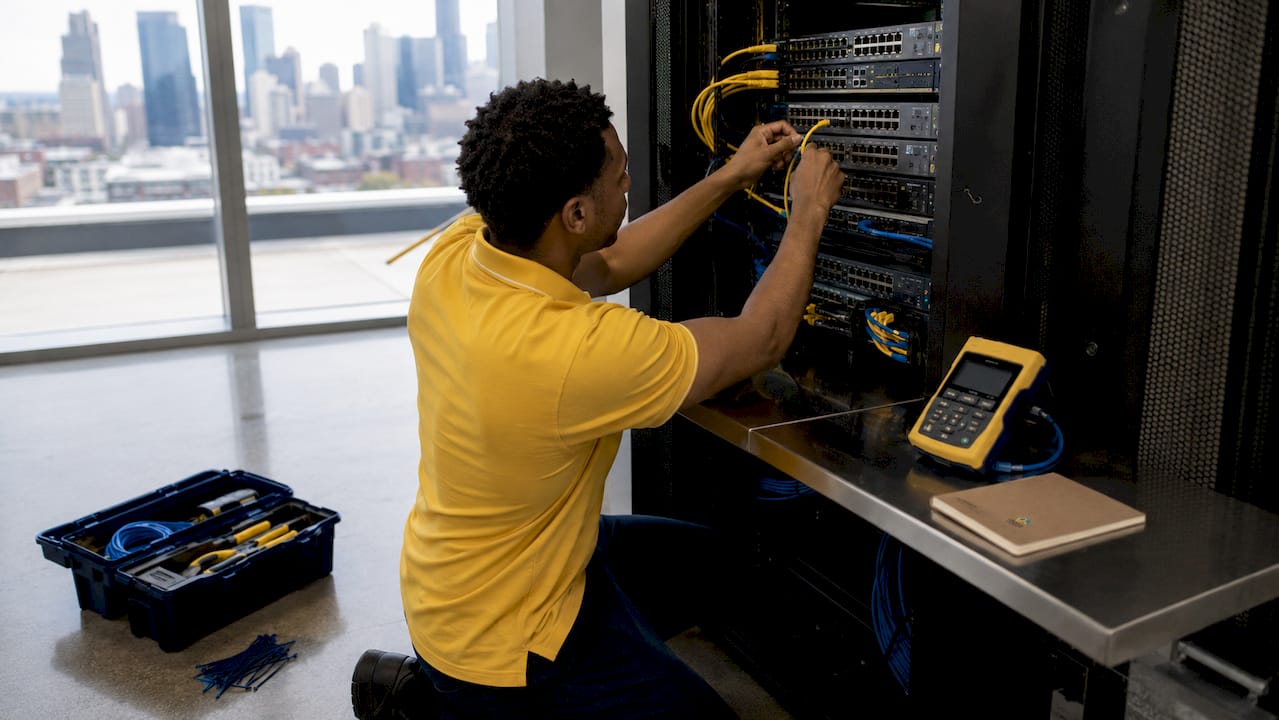
- Mount the switch in your rack or on a flat surface with adequate ventilation on all sides.
- Connect power using the included power adapter or IEC cable. Wait for the system LED to show solid green before proceeding.
- Connect the router to the switch using an Ethernet cable from any LAN port on the router to any available port on the switch. Never use the router’s WAN port for this connection.
- Connect user devices to the remaining switch ports using standard Ethernet patch cables.
- Verify link lights on each port. A solid or blinking amber or green LED confirms a live connection.
For unmanaged plug-and-play switches, the process ends here. No additional configuration is required. The router continues to assign IP addresses via DHCP, and every connected device communicates through the switch automatically.
Managed switches require additional steps after physical connection, covered in the next section. The physical process is identical, but you will also need a console cable connected from your laptop to the switch’s console port for initial access.
Pro Tip: Never connect two switch ports to each other without STP configured. On an unmanaged switch, that creates a broadcast storm that takes down the entire network within seconds.
Cable organization matters more than most IT guides admit. Use Velcro ties rather than zip ties so you can reposition cables without cutting. Color-code by function: blue for workstations, yellow for uplinks, red for management. This practice pays dividends every time you troubleshoot or expand.
What are the key configuration steps for managed office network switches?
Managed switch configuration follows a defined sequence. Skipping steps creates hard-to-diagnose problems later.
-
Cancel Zero Touch Provisioning (ZTP) if applicable. Arista switches ship in ZTP mode. Bypassing ZTP requires console login as admin with no password, then explicitly cancelling ZTP before any manual configuration takes effect.
-
Set the management IP address and default gateway. Without this step, remote access via SSH or SNMP is impossible. Management Ethernet ports allow out-of-band access and require a static IP and a route to the gateway. A frequent pitfall is assuming the switch is remotely accessible before completing this step.
-
Create and name VLANs. Define each VLAN with a number and a descriptive name before assigning any ports. Example: VLAN 10 for staff, VLAN 20 for guest Wi-Fi, VLAN 30 for VoIP.
-
Assign access ports. Each port connecting a workstation, phone, or printer gets assigned to exactly one VLAN. Explicitly defining access ports prevents the silent mis-tagging that causes intermittent connectivity failures.
-
Configure trunk ports. Trunk ports carry traffic for multiple VLANs between switches or to a router. Always specify an allowed VLAN list explicitly. Relying on default trunk settings in production causes unpredictable behavior. Set a non-VLAN 1 native VLAN for added stability.
-
Harden STP. Place the root bridge on your core switch deliberately, not by default. Enable BPDU Guard on access ports, Root Guard on uplinks, and Loop Guard on redundant paths. Controlled STP topology converts passive convergence into managed failure recovery. Verify STP behavior in a test window before going live.
-
Enable port security and DHCP snooping. Port security limits the number of MAC addresses per port. DHCP snooping blocks rogue DHCP servers from handing out addresses on your network.
-
Save configuration and enable remote management. Use
write memoryor the equivalent command for your platform. Enable SSH rather than Telnet. Configure SNMP if your monitoring platform requires it.
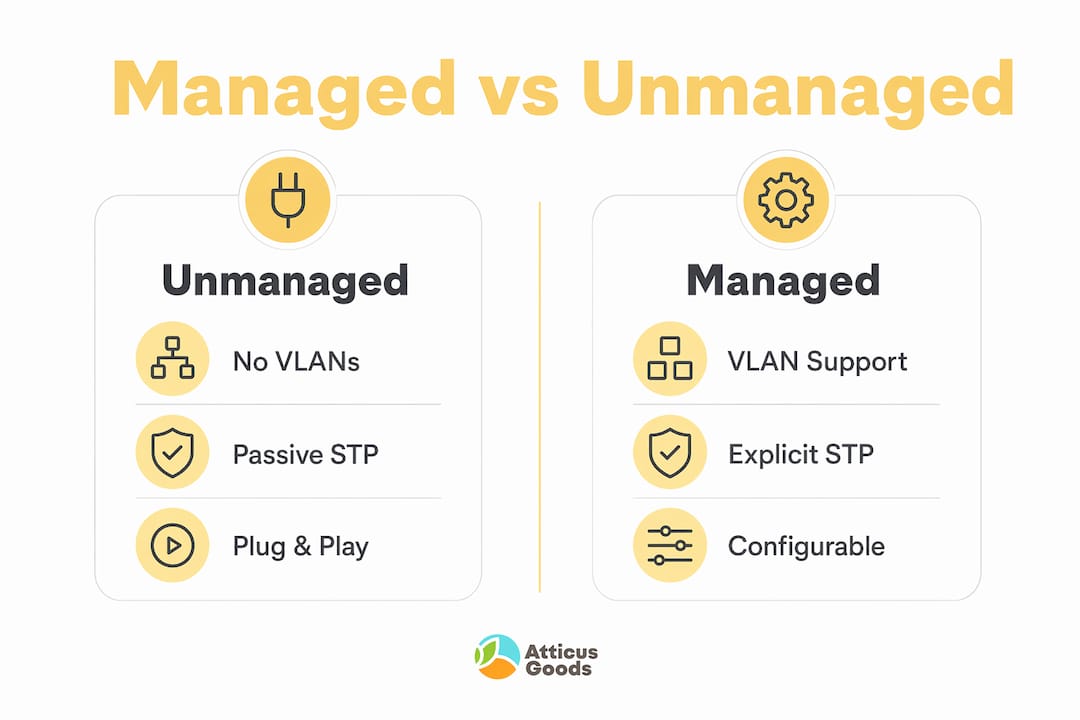
Managed vs. Unmanaged: Feature Comparison
| Feature | Unmanaged Switch | Managed Switch |
|---|---|---|
| VLANs | No | Yes |
| STP control | Passive | Explicit and configurable |
| Port security | No | Yes |
| QoS | No | Yes |
| Remote management | No | SSH, SNMP, web GUI |
| Initial configuration | None | Required |
Pro Tip: Save your configuration to an external TFTP server or cloud backup immediately after initial setup. A failed power supply with no backup config means starting from scratch.
Unmanaged vs. managed switches: which does your office need?
The choice between switch types determines your network’s security ceiling and management overhead.
Unmanaged switches suit small offices where all devices share one flat network and simplicity outweighs segmentation. A five-person accounting firm with a router, a few workstations, and a shared printer needs nothing more than a Netgear GS308 or similar plug-and-play device. Setup takes under ten minutes. The router handles DHCP, DNS, and internet access. The switch just multiplies available ports.
Managed switches are the right call when your office has more than one type of traffic, more than one department, or compliance requirements. Managed switches deliver VLANs, trunking, STP control, port security, QoS, and monitoring. These features prevent broadcast storms, isolate sensitive data, and give you visibility into every port. A 30-person office with VoIP phones, a guest Wi-Fi access point, and a server room needs managed switching to keep those traffic types separated and prioritized correctly.
Key differences at a glance:
- Cost: Unmanaged switches cost less upfront; managed switches reduce incident response costs over time
- Complexity: Unmanaged requires no training; managed requires CLI or web GUI familiarity
- Scalability: Unmanaged tops out quickly; managed switches support PoE network device configuration and stack expansion
- Security: Unmanaged offers no access control; managed supports port security, 802.1X, and DHCP snooping
For a deeper breakdown of switch categories, the network switch types guide at Atticus Goods covers managed, unmanaged, and smart switch options with retail and office use cases.
How do you troubleshoot common office network switch issues?
Most switch problems trace back to three sources: physical cabling, VLAN misconfiguration, or STP errors.
Common issues and how to address them:
- No link light on a port: Swap the cable first. If the link light stays off with a known-good cable, test the port with a different device. A dead port may require hardware replacement.
- Device connects but gets no IP address: Verify the router’s DHCP scope has available addresses. On a managed switch, confirm the port is assigned to the correct VLAN and that VLAN has a DHCP helper or server.
-
VLAN traffic not passing between switches: Run
show vlan briefto confirm VLAN existence on both switches. Runshow interfaces trunkto verify the VLAN appears in the allowed list on the trunk port. -
Network loops or broadcast storms: Check STP status with
show spanning-tree. Confirm BPDU Guard is active on access ports. Disconnect any unauthorized switch connections immediately. - Unauthorized device on the network: Port security logs show MAC address violations. Disable the offending port and investigate before re-enabling.
Pro Tip: Always test STP and redundancy configurations during a scheduled maintenance window, not during business hours. A misconfigured root bridge can take down the entire network for several minutes during convergence.
When connectivity issues persist after checking configuration, use a cable tester like the Fluke Networks MicroScanner to rule out physical layer problems. Systematic connectivity troubleshooting starts at Layer 1 and works up. Skipping physical verification wastes time chasing software problems that do not exist.
Escalate to hardware replacement when a port fails consistently across multiple cables and devices, or when the switch drops connections intermittently under normal load. Managed switches from Cisco and Netgear include diagnostic commands like show interfaces counters errors that surface hardware faults before they become outages.
Key takeaways
A successful office network switch setup depends on matching switch type to office complexity, completing physical installation correctly, and applying disciplined configuration practices for managed devices.
| Point | Details |
|---|---|
| Match switch type to office size | Use unmanaged for simple flat networks; choose managed when VLANs or security are required. |
| Plan before you cable | Draw a network diagram and define VLANs, IP ranges, and port roles before installation begins. |
| Configure trunk ports explicitly | Always define allowed VLAN lists on trunk ports to prevent silent mis-tagging and connectivity failures. |
| Harden STP before going live | Place root bridges deliberately and enable BPDU Guard, Root Guard, and Loop Guard on all relevant ports. |
| Troubleshoot from Layer 1 up | Start with cable and link light verification before investigating VLAN or STP configuration errors. |
What i’ve learned after years of switch deployments
Most IT guides treat managed switch configuration as a checklist. In practice, the order of operations matters more than any individual step.
The single most common mistake I see in small business deployments is configuring VLANs after cabling is complete. When you assign VLANs to ports after devices are already connected and users are working, you create a window where traffic is mis-tagged and devices lose connectivity mid-session. Plan VLANs on paper, configure them on the switch, then connect devices. That sequence eliminates an entire category of complaints.
STP gets underestimated constantly. Small offices skip root bridge placement because they only have two or three switches and assume STP will sort itself out. It usually does, until someone adds a fourth switch or a network loop appears, and then STP convergence takes down the network for 30–50 seconds. Spending 20 minutes placing the root bridge deliberately and enabling BPDU Guard on access ports costs nothing and prevents real outages.
Zero-touch provisioning is worth learning if you manage more than five switches. Arista’s ZTP and similar features on Cisco and Netgear platforms let you push configurations automatically at boot. That said, always keep a console cable accessible. ZTP failures at 2 a.m. require direct console access to recover, and a switch with no console cable nearby is a serious problem.
Physical cable management is the part most IT professionals skip when they are under time pressure. Unlabeled, tangled cables in a rack add 30–60 minutes to every future troubleshooting session. Label everything on day one. Your future self will appreciate it.
— Matthew Vista
Get your office network hardware from atticus goods
Ready to put this guide into practice? Atticus Goods carries a broad selection of office networking solutions including Netgear unmanaged and managed switches, PoE-capable smart switches with remote cloud management, and all the cabling and accessories your installation requires.
Whether you need a straightforward Netgear 16-port unmanaged switch for a small office or a Netgear PoE smart switch with remote cloud management for a growing business, Atticus Goods ships next day across the United States. Browse the full networking catalog, compare specs side by side, and order with confidence knowing your hardware arrives fast and ready to deploy.
FAQ
What is the difference between a managed and unmanaged switch?
An unmanaged switch requires no configuration and connects devices automatically, while a managed switch supports VLANs, STP, port security, and remote management for more complex networks.
How do i connect a network switch to my office router?
Connect any LAN port on the router to any port on the switch using a standard Ethernet cable. Never use the router’s WAN port for this connection.
Do i need a managed switch for a small office?
A small office with fewer than 20 devices on a single flat network works fine with an unmanaged switch. Choose a managed switch when you need VLANs, guest network isolation, or VoIP traffic prioritization.
How do i access a managed switch for the first time?
Connect a console cable from your laptop to the switch’s console port, open a terminal program like PuTTY at 9600 baud, and log in. On Arista switches, the default login is admin with no password, and you must cancel ZTP before configuring anything manually.
What commands verify VLAN and trunk configuration on a cisco switch?
Run show vlan brief to confirm VLANs exist and port assignments, and show interfaces trunk to verify which VLANs are allowed and active on each trunk port.