

For almost every everyday computing task, an SSD should be your primary drive. HDDs still win when you need the lowest possible cost per terabyte. The decision splits along two axes: speed and latency on one side, cost-per-terabyte and raw capacity on the other, and the smart move in 2026 is usually to use both, each where it fits.
TL;DR:
- SSDs deliver vastly higher performance in speed and input/output operations, especially on random small-scale tasks, compared to HDDs.
- HDDs remain the cost-effective solution for large-capacity storage needs, often costing much less per terabyte than SSDs.
- SSD durability is measured in TBW and is less prone to mechanical failure, while HDDs are more vulnerable to physical shocks and wear over time.
- NVMe drives outperform SATA SSDs significantly in bandwidth, but for most desktop uses, SATA SSDs provide near-peak practical speed.
- Upgrading from HDD to SSD is straightforward with proper backup, compatibility check, and cloning or clean installation, greatly improving system responsiveness.
Table of Contents
- SSD vs HDD: How Solid-State Drives Work
- How Hard Disk Drives Still Earn Their Keep
- SSD vs HDD Performance, Cost, and Durability Compared
- NVMe vs SATA: Does the Interface Actually Matter?
- Which Drive Fits Your Setup: Use-Case Recommendations
- How Do You Upgrade From an HDD to an SSD?
- Who’s Behind This SSD vs HDD Guide
- Getting Data Back: Recovery Options for Each Drive Type
- Environmental Impact and Recyclability of SSDs and HDDs
- The Practical Rule for 2026
- Shop SSDs and HDDs at Atticus Goods
- Sources
- FAQ
SSD vs HDD: How Solid-State Drives Work
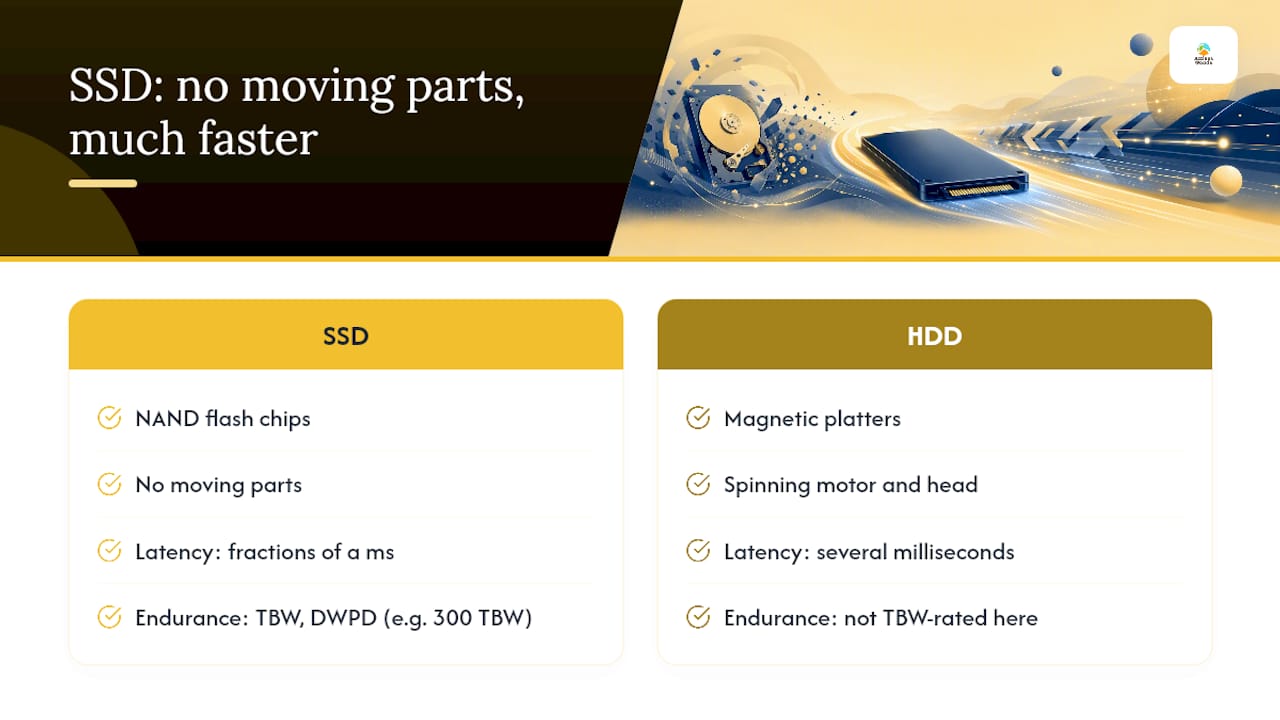
An SSD stores data in NAND flash memory chips, with no platters, motors, or moving parts of any kind. A controller chip manages every read and write, deciding which physical memory cells hold which data and handling error correction on the fly. That absence of mechanical motion is the single biggest reason SSDs respond to requests in fractions of a millisecond instead of the several milliseconds an HDD needs to physically move a head into position.
Endurance on an SSD gets measured in TBW, or terabytes written, a rating manufacturers publish alongside a related figure called DWPD (drive writes per day). A consumer drive rated for 300 TBW can absorb roughly 300 terabytes of total writes over its life before the flash cells start wearing out. Modern SSDs are rated at hundreds of TBW, which comfortably outlasts typical consumer use. The controller’s firmware handles wear leveling, spreading writes evenly across cells so no single block dies early, which is why a healthy SSD rarely fails from simple aging the way a spinning disk does.
You’ll run into three common consumer formats: M.2 NVMe sticks that plug directly into the motherboard, 2.5 inch SATA drives that slot into a laptop or desktop bay, and external USB-C SSDs for portable storage. Each uses the same underlying NAND flash. The difference between them comes down entirely to the interface connecting the flash to your computer, which we’ll get into below.
How Hard Disk Drives Still Earn Their Keep
An HDD stores data magnetically on spinning platters, read and written by an actuator arm that swings a head across the surface, similar to a record player but sealed and vastly more precise. Platters spin at a fixed speed typical of consumer drives, and every read request forces the head to physically seek to the right track before it can pull data. That seek time, typically several milliseconds, is the mechanical tax an SSD simply doesn’t pay.
Where HDDs still dominate is capacity economics. You can buy an 8TB or even 20TB HDD for a fraction of what the equivalent SSD capacity costs, and that gap widens the bigger the drive gets. Enterprise data centers still lean on HDDs for their coldest, highest-volume storage tiers because acquisition cost per terabyte still favors spinning disk at extreme scale, even as SSD capacities climb.
The tradeoff is mechanical fragility. A dropped external HDD can send the head crashing into a platter, and a failing motor or bearing gives you gradual, sometimes ominous warning sounds before it dies completely. Drop an SSD, by contrast, and it almost certainly survives fine.
SSD vs HDD Performance, Cost, and Durability Compared
The gap between these two technologies isn’t subtle in any dimension except one: price per terabyte.
Performance is where SSDs pull away hardest. HDDs sustain a few hundred megabytes per second on large sequential transfers at best, while NVMe drives regularly deliver several gigabytes per second on the same kind of transfer, an order-of-magnitude difference that shows up most in file copies, game load times, and video export. The gap gets even bigger on random reads and writes, the kind of scattered small operations an operating system does constantly, where SSDs post IOPS (input/output operations per second) figures that HDDs can’t approach because there’s no head to physically reposition between requests.
Cost and capacity flip the script entirely. HDDs remain the cheapest way to buy bulk storage, and that’s precisely why they haven’t disappeared despite losing every speed argument.
Durability splits into two very different failure philosophies:
- SSDs wear out predictably, tracked against a published TBW rating, and mostly fail from firmware bugs or controller issues rather than time itself.
- HDDs fail mechanically and often with less warning, from bearing wear, head crashes, or shock damage from a drop or bump.
- Both drive types demand real backups regardless of which one you buy, because failure modes differ but risk never hits zero for either.
Power and noise favor SSDs cleanly. A spinning HDD pulls more power than flash memory at idle and under load, which shortens laptop battery life and adds heat to a NAS enclosure running 24/7. It’s also audibly present, a faint whir or click that SSDs simply don’t produce since there’s nothing mechanical to hear.
NVMe vs SATA: Does the Interface Actually Matter?
NVMe and SATA are protocols, not drive types, and the difference comes down to how much bandwidth each one can push. SATA III tops out around 600 MB/s no matter how good the flash inside the drive is. NVMe rides directly on the PCIe bus and supports vastly more command queues and parallel operations, which is why PCIe Gen4 and Gen5 NVMe drives can hit several gigabytes per second.
Here’s the part most buyers get wrong: that gap barely registers for typical desktop use. SATA SSDs already remove storage as the bottleneck for browsing, office work, and most game loading, because those tasks rarely generate enough concurrent I/O to saturate a SATA link in the first place. NVMe’s advantage becomes obvious in specific scenarios:
- Copying or exporting large video files where sustained throughput matters
- Running virtual machines or databases with heavy, concurrent read/write activity
- Professional workloads juggling multiple large asset libraries at once
Pro Tip: Before buying an NVMe drive, check your motherboard’s M.2 slot specs. Some M.2 slots are wired only for SATA signaling or share PCIe lanes with other ports, and a mismatch means you won’t get NVMe speeds even with the right drive installed.
If your laptop or desktop is a few years old, an external SSD upgrade built around SATA still delivers most of the perceived speed boost you’re chasing, at a lower price than chasing NVMe for its own sake.
Which Drive Fits Your Setup: Use-Case Recommendations
Buying decisions get a lot easier once you match the drive to the actual job it needs to do rather than chasing the fastest spec sheet.
- Everyday laptop user: A 512GB SATA or NVMe SSD as your only drive covers browsing, office software, and streaming comfortably, with 1TB as a safer floor if you keep a large photo or media library locally.
- Gamer: Install your active game library on an SSD, ideally NVMe for faster load screens, and offload your backlog of rarely played titles to a secondary HDD to stretch your budget further.
- Content creator or video editor: Run active edit projects off an NVMe drive to handle large sustained file reads, then archive finished projects to higher-capacity HDDs once you’re done, a setup worth planning around when choosing a video-editing laptop.
- Home NAS or backup server: HDDs still make the most financial sense here since capacity matters more than raw speed, though adding a small SSD cache drive can speed up access to frequently used files.
- Budget upgrade path: A SATA SSD swap is the single best dollar-for-dollar upgrade for an aging laptop, and a hybrid setup with a small SSD boot drive plus a larger HDD for storage stretches a tight budget without sacrificing responsiveness.
Anyone weighing a work laptop purchase should also factor drive configuration into that decision directly. Comparisons like ThinkPad vs Latitude matter as much for storage flexibility as for keyboard feel or battery life.
How Do You Upgrade From an HDD to an SSD?
Migrating your boot drive from a spinning disk to flash storage is one of the most noticeable upgrades you can make to an old computer, and it doesn’t require much technical skill if you follow a clear sequence.
- Back up everything first. Don’t skip this step even if you’re planning to clone the drive; cloning software occasionally fails partway through.
- Confirm your interface and form factor. Check whether your machine has a free M.2 slot, a 2.5 inch SATA bay, or needs an external enclosure, since buying the wrong format wastes money and time.
- Pick your capacity based on real usage, not guesswork. Look at how much space your current drive actually uses before deciding between 500GB, 1TB, or higher.
- Choose cloning or a clean install. Cloning preserves your current setup and gets you running faster; a clean Windows or macOS install is slower but avoids carrying over years of clutter and registry bloat.
- After migration, confirm TRIM is enabled, update your SSD’s firmware if a tool is available from the manufacturer, and verify your backups still run correctly on the new drive.
Pro Tip: Once your SSD is installed, check your operating system’s power settings. Older HDD-era power profiles sometimes throttle SSD performance unnecessarily on laptops, so switching to a balanced or high-performance plan can recover speed you already paid for.
Who’s Behind This SSD vs HDD Guide
This guide was written for Atticus Goods by Matthew Vista, drawing on published benchmark data and manufacturer specifications rather than any single lab test. A wide inventory of storage hardware across consumer electronics is available, so the practical advice here reflects what buyers actually shop for, not theoretical specs. For a deeper technical breakdown of the two drive types, see the site’s SSD and HDD explainer.
- Author credentials and past coverage: additional detail pending
- Independent lab benchmark citations: to be added as available
- Reader case studies and upgrade stories: placeholder for future updates
Getting Data Back: Recovery Options for Each Drive Type
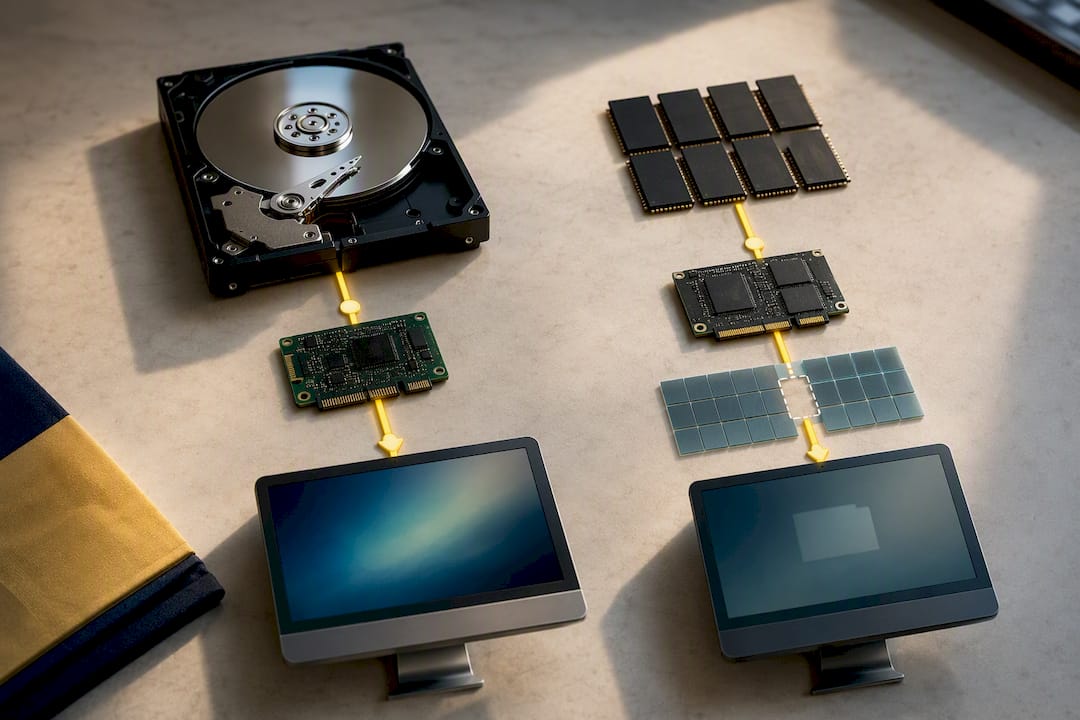
Recovering data from a failed HDD is, ironically, often easier than from a failed SSD, precisely because of how each one fails. When an HDD’s electronics die but the platters remain undamaged, a specialist can sometimes swap components or read the platters directly in a clean environment. Physical platter damage from a head crash is far harder to reverse, and DIY attempts usually make things worse.
SSD recovery is trickier for a different reason. Wear leveling and the controller’s internal mapping mean your files aren’t stored in predictable, contiguous locations the way they often are on a platter. When an SSD’s controller fails, the flash chips themselves may be fine, but without the controller’s mapping data, reconstructing files becomes a specialized, expensive process. TRIM commands also actively erase deleted data blocks in the background on SSDs, which shrinks the recovery window compared to an HDD, where deleted files often linger until overwritten.
The practical takeaway is the same for both drive types: don’t treat either one as safe just because it hasn’t failed yet. Cloud backups or a secondary local drive cost far less than emergency data recovery services, and they remove the guesswork entirely when a drive of either kind eventually gives out.
Environmental Impact and Recyclability of SSDs and HDDs
Manufacturing an SSD is a chip-fabrication process, similar in footprint to producing other semiconductor components, while an HDD involves precision-machined metal platters, motors, and magnets. Neither manufacturing process is clean, but they draw on different resource streams: SSDs lean on silicon wafer fabrication, while HDDs use more raw metal and rare-earth magnets in their actuator assemblies.
At end of life, HDDs are comparatively straightforward to recycle since their metal casings, platters, and magnets can be mechanically separated and processed through standard electronics recycling channels. SSDs are harder to recycle cleanly because NAND flash chips are soldered onto circuit boards alongside other components, making material separation more labor intensive.
Longevity plays into the environmental math too. An SSD that lasts through its full rated TBW without early failure avoids the resource cost of an early replacement, and buying appropriately rather than oversizing your storage needs reduces waste on either side. Whichever drive you retire, look for a certified e-waste recycling program rather than tossing it in household trash. Both drive types contain materials, and in the SSD’s case circuit-mounted components, that shouldn’t end up in a landfill.
The Practical Rule for 2026
The rule hasn’t changed much, only the price curve has. Flash handles active work; disk handles cheap bulk storage. Re-run that math whenever SSD prices drop meaningfully or your working data set outgrows your current drive, because the boundary between where SSDs and HDDs belong keeps shifting as flash gets cheaper per terabyte.
— Matthew Vista
Shop SSDs and HDDs at Atticus Goods
A full range of SSDs and HDDs across the capacities and interfaces covered in this guide is available, from budget SATA drives to high-throughput NVMe options, with fast nationwide shipping on in-stock items so your upgrade doesn’t sit in transit for a week. If you’re outfitting a home office or upgrading a NAS setup, fast shipping applies to the accessories and peripherals you’ll want alongside it, including audio gear like the Ultimate Ears BOOM 4 speaker for your new setup.
Start by checking your current drive’s capacity and interface, then browse the full electronics and storage catalog to find the SSD or HDD that matches your setup and budget. If you’re still narrowing down NVMe versus SATA for a specific build, a quick look at NVMe hosting fundamentals can help clarify which protocol actually benefits your workload before you check out.
Sources
FAQ
Is It Better to Get an SSD or HDD?
An SSD is the better choice for your primary or boot drive because of its speed and reliability advantages, while an HDD makes more sense for bulk, low-cost storage like backups or media archives. Most setups benefit from using both, each in its own role, rather than picking one exclusively.
What Are the Disadvantages of SSDs?
SSDs cost more per terabyte than HDDs, which makes large-capacity storage more expensive on flash. They also have a finite write endurance measured in TBW, though that rating comfortably covers typical consumer use over the drive’s practical lifespan.
Is a 256GB SSD Better Than a 1TB Hard Drive?
For system responsiveness, an SSD outperforms an HDD by a wide margin since boot times, app launches, and file access all benefit from flash speed. If you need to store a large media library or extensive backups, though, the HDD’s capacity advantage matters more than raw speed.
Which Lasts Longer, an SSD or an HDD?
Neither drive type has a universal lifespan advantage because they fail differently. SSDs wear down predictably against a published TBW rating, while HDDs fail mechanically from motor, bearing, or head issues that tend to appear with age and physical shock, so real-world durability depends heavily on how each drive is used and handled.