

A KVM switch is a hardware device that lets one keyboard, one monitor, and one mouse control multiple computers. The acronym stands for Keyboard, Video, Mouse, and the core idea is simple: instead of buying separate peripherals for each machine, you plug everything into the KVM and switch between computers with a button press or a hotkey. One desk, one set of peripherals, multiple computers under your fingertips.
The practical benefits are immediate: less clutter, lower hardware cost, and faster context switching. A home office user running a work laptop and a personal desktop saves a monitor and a full peripheral set. An IT admin managing a small server rack uses a single console instead of rolling a crash cart to each machine. A data center technician gets out-of-band access to servers that have no display of their own.
Table of Contents
- What does a KVM switch actually do, and why bother?
- How does a KVM switch work under the hood?
- What are the main types of KVM switches?
- KVM-over-IP: what you gain and what you expose
- Who actually benefits from a KVM switch?
- How do you choose the right KVM switch?
- Setting up a desktop KVM: what you need and how to connect it
- Common KVM problems and how to fix them
- What KVM switches can’t do, and the main risks
- How much does a KVM switch cost, and where should you buy?
- Key Takeaways
- The part most buyers overlook
- Find the right KVM switch at Atticus Goods
- Useful sources for further reading
What does a KVM switch actually do, and why bother?
The console concept is the foundation. You connect your keyboard, monitor, and mouse to the KVM’s console ports. Each computer connects to the KVM through its own set of host ports. From the KVM’s perspective, it is always presenting a full set of peripherals to every connected machine simultaneously, even though only one machine actually has control at any given moment.
That persistent connection is what makes KVMs genuinely useful rather than just a cable-sharing gimmick. The key kvm switch benefits break down like this:
- Fewer peripherals to buy and maintain. One monitor, one keyboard, one mouse covers every machine on the switch. A four-port KVM replaces three extra monitor sets.
- Desk and rack space savings. Eliminating redundant monitors and keyboards frees up significant real estate, especially in a rack environment where U-space costs money.
- Faster workflow switching. Toggling between a coding machine and a test server takes one keystroke rather than physically moving to another desk or reaching for a second keyboard.
- Centralized control. All machines respond to the same input device, which means consistent muscle memory and no hunting for the right keyboard.
- Cost savings over time. Even a $150 KVM pays for itself quickly when the alternative is buying three extra monitors and peripheral sets.
The efficiency gain compounds when you factor in context switching. Replacing multiple input devices with a single console materially speeds up the kind of multi-device workflows that are now standard for developers, IT admins, and power users running a personal PC alongside a work machine.
How does a KVM switch work under the hood?
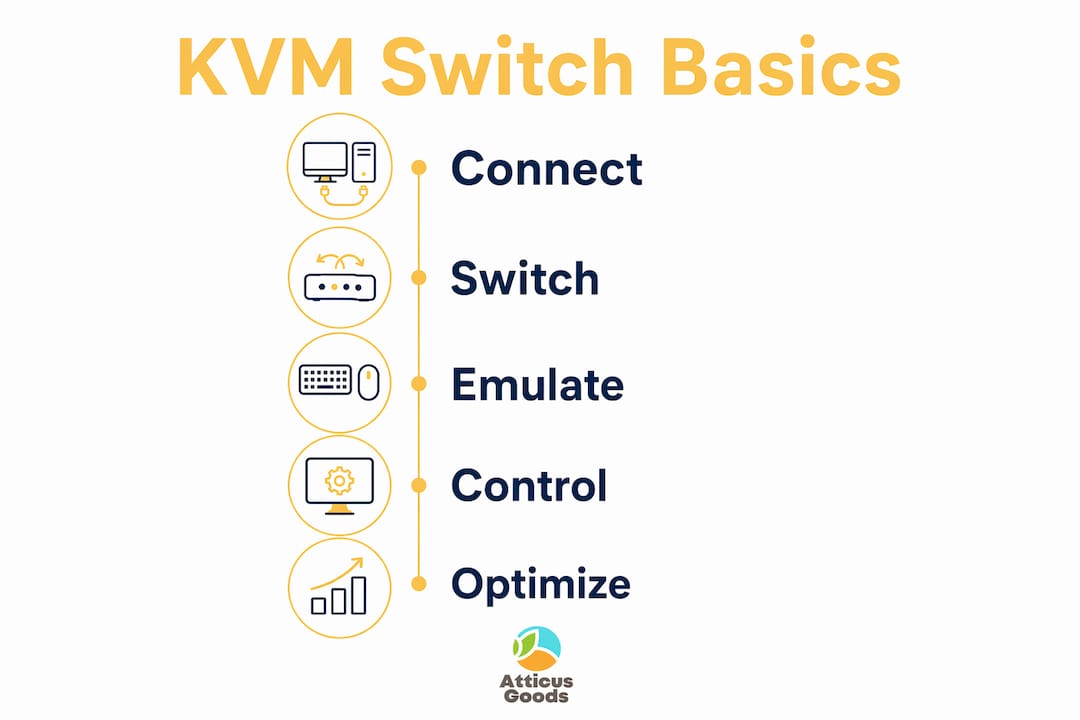
When you press the switch button, the KVM does two things at once: it routes your keyboard and mouse signals to the newly selected computer, and it routes that computer’s video output to your monitor. The physical signal path is straightforward. What makes it reliable is what happens in between.
Peripheral emulation keeps things smooth
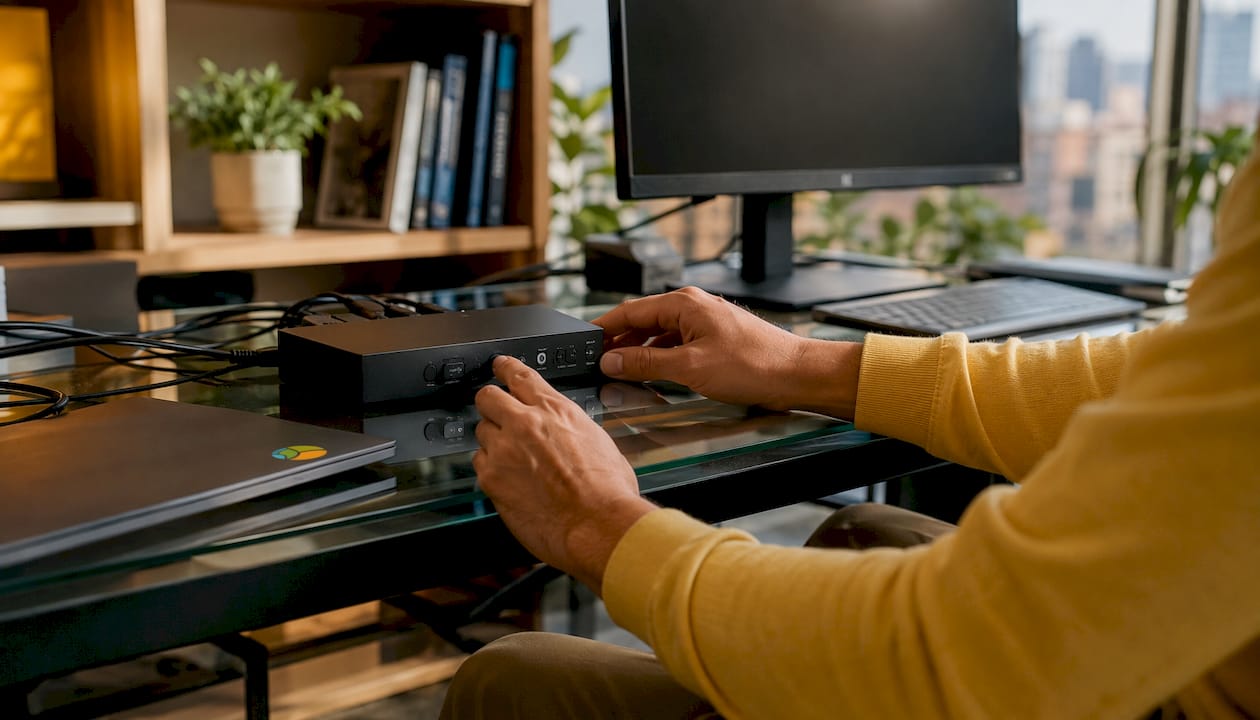
Without emulation, every time you switched computers, the newly active machine would detect a fresh USB device connection and go through the full driver-loading sequence. That causes delays, and on some systems it causes input errors. Hardware emulation solves this by keeping a persistent signal to every connected host at all times. The operating system never sees a disconnect, so there is no re-detection delay when you switch.
Emulation quality varies. Basic USB emulation handles standard keyboards and mice cleanly. DDM (Dynamic Device Mapping) goes further, preserving extra mouse buttons, scroll wheels, and multimedia keys across the switch. If you use a gaming mouse with programmable buttons or a keyboard with media controls, DDM matters.
Switching methods
- Front-panel button: Physical press on the KVM unit. Simple, reliable, works without any software.
- Hotkey sequence: A keyboard shortcut (often Scroll Lock twice, then a number) triggers the switch. Keeps your hands on the keyboard.
- On-screen display (OSD): A menu overlaid on your monitor lets you select the target computer by name or number. Useful when you have more than four ports.
- Mouse cursor crossing: Boundless switching moves the cursor to the edge of the screen and the KVM switches automatically, like a multi-monitor setup. Feels the most natural for desktop workflows.
Connector types and why they matter
The interface between the KVM and your computers determines the maximum resolution and refresh rate you can push. VGA tops out at 1080p and is largely legacy at this point. HDMI 2.0 handles 4K at 60Hz. DisplayPort 1.4 supports 4K at 144Hz and higher. USB-C with DisplayPort Alt Mode covers modern laptops. Modern KVM switches can support resolutions up to 4K and in some cases 5K, along with audio sharing and virtual media for remote OS installs.
What are the main types of KVM switches?
KVM switches fall into four broad categories, each suited to a different environment and distance requirement.
| Type | Distance | Users | Best For |
|---|---|---|---|
| Local/Analog (desktop) | Same room | 1 | Home office, small workstation setups |
| Rack/Matrix | Same room or row | 1–multiple | Server rooms, data center rows |
| KVM-over-IP | Any network distance | Multiple simultaneous | Remote data center access, multi-site IT |
| Multi-monitor/Multi-viewer | Same room | 1–2 | Broadcast, AV control rooms, 4K workflows |
Local/analog KVM switches are the most common for home and small office use. They connect directly via USB and HDMI or DisplayPort cables, introduce minimal latency, and cost the least. If your computers are within cable reach of your desk, this is almost certainly what you need.
Rack-mount KVM switches are designed for server environments. They often include a built-in LCD panel and keyboard that fold into a 1U or 2U rack drawer. Port counts typically run in the mid double digits, and they handle the kind of continuous-duty cycling that a desktop unit is not rated for.
KVM-over-IP converts keyboard, video, and mouse signals into network packets and transmits them over a LAN or WAN. An IT admin in Chicago can pull up a BIOS screen on a server in Dallas without touching a plane ticket. The tradeoff is latency and security complexity, which the next section covers in detail.
Multi-monitor KVM switches support two, three, or four displays per computer. They are common in broadcast control rooms, post-production suites, and trading desks where operators need to see multiple screens from each machine simultaneously. These units are more expensive and require careful EDID management.
- Local KVM: choose this for home office, developer workstations, and any setup where all machines are within 15 feet.
- Rack KVM: choose this for a server room or colocation cage where you need a permanent console.
- KVM-over-IP: choose this when remote access is the primary requirement and you can manage the security overhead.
- Multi-monitor KVM: choose this when each computer drives more than one display and you cannot compromise on screen real estate.
KVM-over-IP: what you gain and what you expose
Remote access is the headline feature of KVM-over-IP. You get full out-of-band console access to any connected machine, including BIOS-level control, regardless of whether the operating system is running. That is genuinely powerful for managing servers that are physically inaccessible.
The cost is a larger attack surface. A secure KVM uses hard-wired physical connections, while a KVM-over-IP unit sits on a network and needs encryption, authentication, and isolation to stay safe. The practical security checklist before you deploy one:
Before relying on KVM-over-IP for production systems: confirm TLS/SSL encryption is enabled on the management interface, place the unit on a dedicated management VLAN with strict ACLs rather than the primary LAN, enable multi-factor authentication or integrate with your existing identity provider, verify the firmware update path and check when the manufacturer last issued a security patch, and disable any unused network services on the KVM unit itself.
KVM-over-IP systems compress and packetize video for transport, which introduces some latency. For BIOS work and server administration, that is acceptable. For anything requiring low-latency input, like a graphics workstation or a gaming rig, it is not. When physical isolation matters more than remote flexibility, a local KVM with no network connection is the safer choice. For guidance on building the isolated management network a KVM-over-IP deployment needs, the network segmentation principles covered in IT network planning apply directly.
Who actually benefits from a KVM switch?
The use cases are broader than most people expect.
Home office with two computers. Running a work-issued laptop alongside a personal desktop is the single most common scenario. One monitor, one keyboard, one mouse, and a two-port KVM eliminates the second peripheral set entirely. Low latency and HDMI/USB-C support are the features that matter here.
Developer with multiple test machines. A developer might run a primary workstation, a Linux test server, and a Windows VM host. Switching between them with a hotkey is faster than remote desktop and gives full keyboard access including function keys and shortcuts that remote tools sometimes intercept.
IT admin in a small server room. A rack KVM with a built-in console drawer gives permanent access to every server in the rack without a separate crash cart. The admin can reboot a machine, enter BIOS, and run diagnostics from a single seat.
Data center remote console access. KVM-over-IP is the standard tool here. Technicians access servers across multiple sites from a central NOC, handling everything from OS reinstalls to firmware updates without dispatching a field tech.
Broadcast and AV control rooms. Matrix KVMs and extenders route video and USB over longer distances in control rooms, post-production suites, and conference rooms. The requirements shift toward multi-monitor support, fiber extenders, and zero-latency video.
Retail operators managing multiple POS terminals or back-office computers can also benefit. A KVM simplifies peripheral sharing across checkout stations, and IT teams handling those setups often find it useful to understand how card reader terminals integrate with the broader hardware stack.
How do you choose the right KVM switch?
Start with four hard constraints before looking at anything else: how many computers you need to connect, what video connectors those computers use, how many monitors each computer drives, and what resolution and refresh rate you need.
Number of ports. Buy one more port than you currently need. Adding a machine later and discovering your KVM is full is a common and avoidable frustration.
Connector types. Match the KVM’s host ports to your computers’ outputs. A mix of HDMI and DisplayPort machines requires either a KVM with both connector types or adapters. Adapters work, but they add a potential failure point and can limit resolution.
Multi-monitor support. Single-display KVMs are cheaper and simpler. If any of your computers drives two or more monitors, you need a multi-monitor KVM. Confirm the port count per computer, not just the total port count.
Resolution and refresh rate. Confirm the KVM’s rated maximum, not just the connector type. An HDMI port on a budget KVM might be capped at 1080p even though HDMI 2.0 can handle 4K. For gaming or high-refresh workflows, verify 144Hz or higher support explicitly.
USB peripheral behavior. Check whether the unit uses basic USB emulation or DDM. If you use a high-DPI mouse, a mechanical keyboard with media keys, or a drawing tablet, DDM is worth the extra cost.
EDID handling. EDID/DDC management determines whether the KVM preserves monitor identity when you switch. Poor EDID handling causes the host to reset its display configuration every time you switch away, which means windows rearrange and resolution resets. Ask the manufacturer explicitly.
Pro Tip: Ask the seller or check the product page for the firmware update policy before you buy. A KVM with no firmware update history is a KVM the manufacturer has stopped supporting, and for KVM-over-IP units that is a security liability.
Red flags to watch for: no persistent emulation listed in the specs, resolution claims that match the connector standard rather than the unit’s actual tested output, KVM-over-IP units with no mention of encryption or authentication, and products with no firmware update history.
Setting up a desktop KVM: what you need and how to connect it
What you need
- The KVM unit itself
- One set of console peripherals (keyboard, monitor, mouse)
- One cable set per computer (video cable plus USB cable, or a combined KVM cable if the unit uses them)
- Adapters if your computers use different connectors than the KVM’s host ports
- Power supply if the KVM requires external power (many desktop units are bus-powered)
Step-by-step connection
- Power off all computers before connecting cables. Some KVMs tolerate hot-plug, but starting with everything off avoids detection issues.
- Connect each computer to the KVM’s host ports. Plug the video cable (HDMI, DisplayPort, or USB-C) and the USB cable from each computer into the corresponding numbered host port on the KVM.
- Connect your console peripherals to the KVM’s console ports. Keyboard and mouse go into the USB console ports; monitor goes into the video console port.
- Connect power to the KVM if it requires an external adapter.
- Power on the KVM first, then power on each computer one at a time.
- Verify the display. Your monitor should show the first computer’s output. If it does not, check that the monitor’s input source matches the KVM’s console output connector.
- Test switching. Use the front-panel button or the default hotkey to cycle through connected computers. Confirm keyboard and mouse respond on each machine.
- Check resolution on each computer. If any machine shows the wrong resolution, the EDID may not be passing correctly. Check the KVM’s EDID settings or try a direct connection to isolate whether the KVM is the cause.
Adapter tip for USB-C laptops: use a USB-C to DisplayPort cable rather than a USB-C to HDMI adapter when possible. The direct Alt Mode connection is more reliable and supports higher refresh rates. For mixed HDMI/DisplayPort setups, active adapters outperform passive ones at 4K.
Common KVM problems and how to fix them
No video after switching. Check the monitor’s input source first. Then reseat the video cable at both the KVM and the computer. If the monitor shows a signal on direct connection but not through the KVM, the EDID is likely the issue.
Wrong resolution after switching. The host reset its display configuration when it lost the EDID signal. Enable the KVM’s EDID emulation or EDID lock feature if available. If the unit has no such feature, that is a design limitation.
Keyboard or mouse not detected. Reseat the USB cables at the console ports. Try a different USB port on the keyboard or mouse if the KVM has multiple console USB ports. On some units, the keyboard and mouse must be connected before power-on to initialize correctly.
Input lag. Short cable runs and direct connections reduce lag. For KVM-over-IP, lag often traces to the unit’s internal video compression or to USB polling rate handling in the emulation layer. Check cable lengths, verify the KVM is not doing unnecessary video processing, and confirm USB polling rates are preserved.
When to update firmware. If a problem appeared after a software or OS update on one of the connected computers, a KVM firmware update may resolve compatibility. For KVM-over-IP units, check for firmware updates any time a security advisory is published.
Isolating the KVM. Connect the problematic computer directly to the monitor and keyboard without the KVM. If the issue disappears, the KVM is the cause. If it persists, the problem is in the computer or its cables.
What KVM switches can’t do, and the main risks
A KVM switch is not a universal solution. Knowing the limits saves you from buying the wrong unit.
Video bandwidth caps. Every KVM has a maximum resolution and refresh rate. A unit rated for 4K/30Hz will not support 4K/60Hz, even if the cables and computers support it. Always verify the KVM’s actual rated output, not just its connector type.
Multi-monitor complexity. Multi-monitor KVMs are more expensive and require more cables. Getting three monitors to switch cleanly across two computers, with correct EDID on all three, is harder than it sounds. Budget extra time for setup and EDID configuration.
USB device compatibility. Most keyboards and mice work fine. Specialized USB devices, drawing tablets, audio interfaces, and hardware security keys sometimes do not. The emulation layer may not pass through all the USB descriptors a specialized device needs.
Software alternatives have real limits. Tools like Mouse Without Borders share keyboard and mouse across computers over a local network, but they do not share the monitor signal. You still need a separate display per computer. They also require software on every host and a working network connection, which means they fail when a machine is at the BIOS level or unresponsive.
KVM-over-IP network exposure. Placing a KVM-over-IP unit on your primary LAN without isolation is a genuine security risk. Keep it on a dedicated management VLAN. For setting up that isolated network, the switch selection and VLAN configuration steps matter as much as the KVM itself.
How much does a KVM switch cost, and where should you buy?
Price ranges vary widely depending on port count, video standard, and feature set.
| Price Band | Typical Range | What You Get |
|---|---|---|
| Entry-level | Under $30 | 2-port, USB, 1080p, basic emulation |
| Mid-range | $100–$200 | 4-port, HDMI/DP, 4K support, better emulation |
| High-end | $700–$800 | Multi-monitor, 4K/60Hz+, DDM, rack-mount options |
Basic consumer models start below $30, quality mid-range KVMs usually cost $100–$200, and advanced multi-monitor or enterprise units can cost several hundred dollars up to $700–$800, depending on port count and features.
Buying tips:
- Confirm the KVM’s actual rated resolution and refresh rate, not just the connector standard.
- Check the return policy before you buy. EDID and emulation issues sometimes only appear after you have connected all your specific hardware.
- Prefer units with a documented firmware update history. It signals the manufacturer is actively maintaining the product.
- For KVM-over-IP, verify encryption and authentication features are present and enabled by default, not optional add-ons.
- Warranty length matters more for rack and enterprise units that run continuously. Look for at least a one-year warranty on any unit above $100.
Key Takeaways
A KVM switch gives you one keyboard, monitor, and mouse to control multiple computers, with the right unit chosen by port count, video standard, and whether you need local or remote access.
| Point | Details |
|---|---|
| Core function | One console controls multiple computers; emulation keeps all hosts connected simultaneously. |
| Local vs. KVM-over-IP | Local KVMs offer low latency and no network risk; KVM-over-IP adds remote access but requires VLAN isolation and encryption. |
| Top buying filters | Match port count, video connector, and rated resolution before price; confirm EDID handling and DDM emulation. |
| Price expectations | Entry-level units start under $30; capable mid-range units run $100–$200; multi-monitor and enterprise units reach $400. |
| Atticus Goods | Browse KVM switches and networking hardware at Atticus Goods for fast, next-day shipping across the United States. |
The part most buyers overlook
Most KVM buying guides focus on port count and price. Those matter, but the detail that actually determines whether a KVM works well in your specific setup is EDID handling, and almost nobody checks it before they buy.
EDID is the data your monitor sends to a computer to describe its capabilities: resolution, refresh rate, color depth. When a KVM switches away from a computer, a poorly designed unit drops that signal. The computer thinks the monitor was unplugged, resets its display configuration, and when you switch back, your windows have moved and your resolution has changed. On a single-monitor setup this is annoying. On a three-monitor trading desk or a broadcast control room, it is a workflow-breaking problem.
The same logic applies to USB emulation quality. A KVM that advertises “full USB support” but only implements basic emulation will drop your extra mouse buttons and media keys every time you switch. That is a spec-sheet omission, not a feature.
The practical lesson: read the spec sheet for the words “EDID emulation,” “EDID lock,” or “DDM” before you commit to any unit above the entry level. If those terms are absent, assume the unit does not handle them well. A $150 KVM with solid EDID management beats a $200 unit without it every time.
Find the right KVM switch at Atticus Goods
Knowing what you need is half the work. Atticus Goods carries a broad selection of KVM switches across all price bands, from compact two-port desktop units for home office setups to multi-port rack-mount models for server rooms, all with next-day shipping across the United States.
Whether you are managing a work laptop and a personal desktop or building out a small server rack, you can filter by port count, video standard, and resolution support to find a unit that matches your exact setup. Every order ships fast, and the product pages include the spec details that matter: connector types, rated resolution, and emulation notes. Browse KVM switches at Atticus Goods and get the right unit to your door quickly.
Useful sources for further reading
- Wikipedia — KVM switch: thorough technical overview covering emulation types, signal flow, and hardware categories.
- PCWorld — What is a KVM switch? Pros and cons explained: accessible buyer-focused explainer with price context.
- How-To Geek — What is a KVM switch?: practical comparison of hardware KVMs and software alternatives.
- Vertiv — What is a KVM switch?: manufacturer perspective on emulation, latency, and enterprise use.
- ATEN — What is a KVM switch?: detailed coverage of EDID/DDC handling and buying considerations.
- AVNetwork — Making the case for KVM: covers broadcast, AV, and security tradeoffs for KVM-over-IP.
- Raritan — Understanding the four categories of KVM switches: clear breakdown of local vs. IP categories with use-case guidance.
Before purchasing, check the manufacturer’s product page and firmware release notes for your specific model. Security documentation is especially worth reviewing for any KVM-over-IP unit you plan to deploy on a production network.